Instructions to connect Modbus Slave device to iConnector and show on Globiots and HMI
- I. Configuration for iConnector
- II. iConnector Installation and Wiring
- III. Globiots Configuration to read Slave Device Modbus Parameter
- IV - Globiots configuration for dashboard and report
- V. Globiots configuration for HMI slave
I. Configuration for iConnector
1.1 Offline configuration process
Step 1: Preparation
Prepare some required devices as below
01x A window PC
01x USB-RS485 Configuration Cable
01x Power adapter 12-24VDC
Download the Configuration software in the link
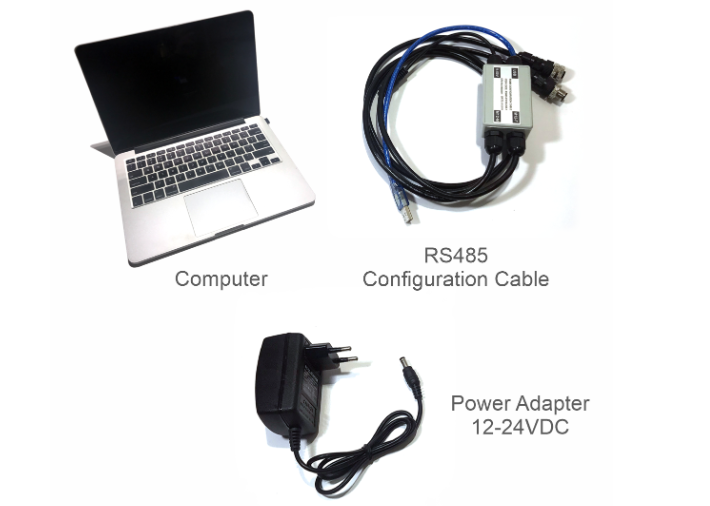
Step 2: Hardware connection
- Connect the USB-A to the PC
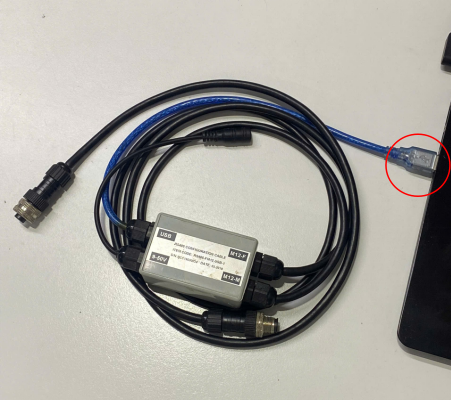
- Connect M12 female of the cable to the iConnector

- Power the iConnector on by connecting DC jack from Power Adapter
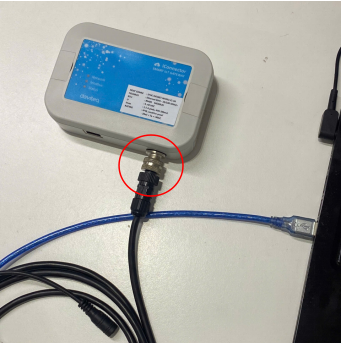
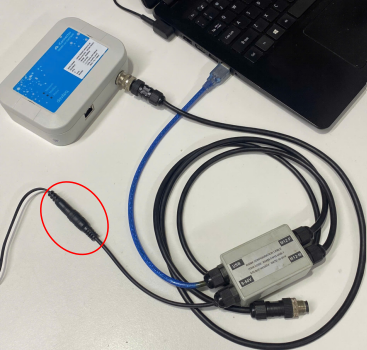
The above steps must be performed in order
Step 3: Configuration the iConnector via iConfig software
- Open the iConfig software, then choose Correct Port, BaudRate and Parity.
Port is based on the PC
BaudRate is 9600
Parity is NONE
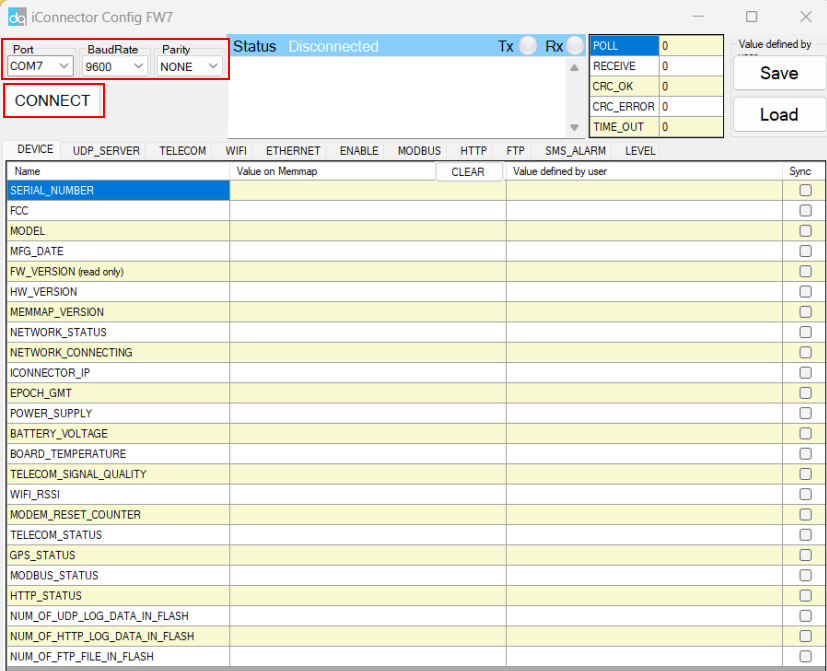
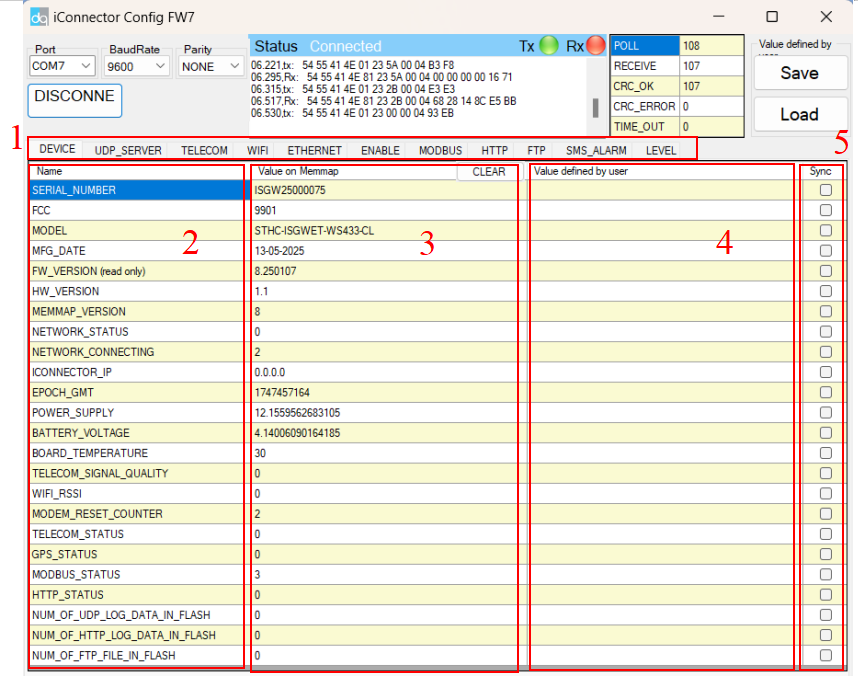
(1) There are 11 configuration tabs on the top banner. Click a tab name to navigate to the corresponding sheet.
(2) The first column displays the parameter names of the iConnector.
(3) The second column shows the current values of the corresponding parameters
(4) The third column is where users can input new configuration values.
(5) After entering the new configuration in the third column, users must tick the corresponding checkbox to apply it. The tick will disappear once the new configuration is successfully written to the iConnector. After that, the updated value will appear in the second column.
1.2 Get iConnector information for Globiots configurations
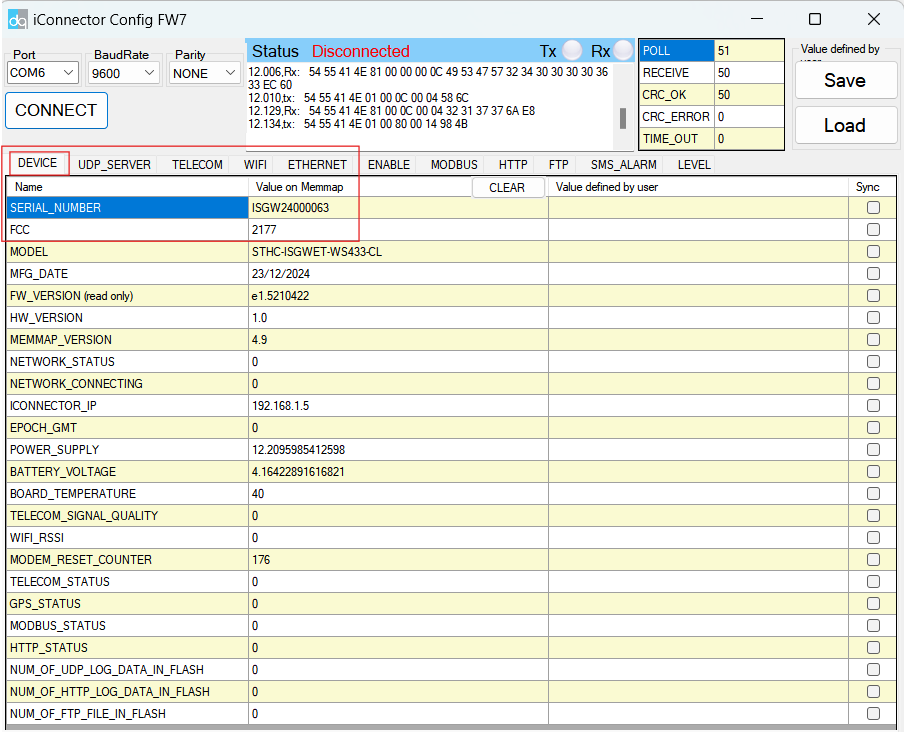
- Click tab Device, get basic information of the iConnector to register it into Daviteq Platform including Serial number & FCC. Note out this information for later iConnector registration on Globiots
1.3 Configuration network parameters for iConnector
* There are many parameters of iConnector to be configured before using.
* However, most of the parameters were configured by the manufacturer.
1.3.1 Configure Globiots server for iConnector
- Click tab UPD_SERVER, input the UDP_SERVER_HOST in the Value defined by user column, then click the check box "Sync" at that row to allow the data to be written to iConnector. Once written successfully, you will see the same data on the "Value" Column.
- Repeat these steps to configure other parameters: UPD_SERVER_PORT, TIME_ZONE configurations.

Above Globiots server configurations are usually pre-configured by manufacturer before delivery
1.3.2 Configure the network information for Ethernet iConnector
- Click tab Ethernet, input the ETHERNET_STATIC_IP in the Value defined by user column, then click the check box "Sync" at that row to allow the data to be written to iConnector. Once written successfully, you will see the same data on the "Value" Column.
- Repeat this step for ETHERNET_GATEWAY, ETHERNET_DNS_SERVER, ETHERNET_DHCP_ENABLE
- Then click tab WIFI and configure MAIN_NETWORK =2

| Name | Description |
| ETHERNET_STATIC_IP | Ethernet Static IP configuration for iConnector. Example: 192.168.1.30 |
| ETHERNET_GATEWAY | Configure gateway |
| ETHERNET_DNS_SERVER | Configure DNS Server |
| ETHERNET_DHCP_ENABLE |
0 (Off) / 1 (On) If DHCP = 0, it's mean Not using DHCP → Static IP |
Above configurations are applied for Ethernet iConnector
1.3.3 Configure the network information for WIFI iConnector
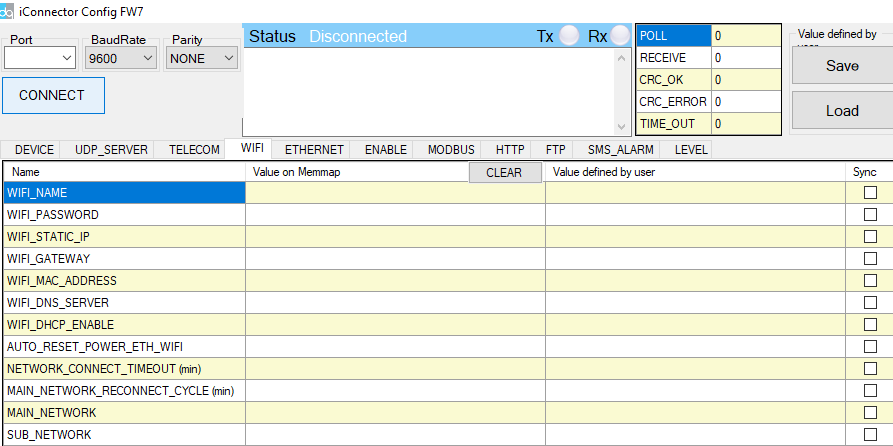
- Click tab WIFI, input the WIFI_NAME in the Value defined by user column, then click the check box "Sync" at that row to allow the data to be written to iConnector. Once written successfully, you will see the same data on the "Value" Column.
- Repeat this step for WIFI_PASSWORD, WIFI_STATIC_IP, WIFI_GATEWAY, WIFI_DNS_SERVER, WIFI_DHCP_CENABLE
- Configure MAIN_NETWORK = 1
| Name | Description |
| WIFI_NAME | WIFI name network |
| WIFI_PASSWORD | Password of WIFI network |
| WIFI_STATIC_IP | WIFI Static IP configuration for iConnector. Example: 192.168.1.30 |
| WIFI_GATEWAY | Configure gateway |
| WIFI_DNS_SERVER | Configure DNS Server |
| WIFI_DHCP_ENABLE |
0 (Off) / 1 (On) If DHCP = 0, it's mean Not using DHCP → Static IP |
- Repeat these steps to configure other parameters: APN_USERNAME and APN_PASSWORD configurations.
Above configurations are applied for WIFI iConnector
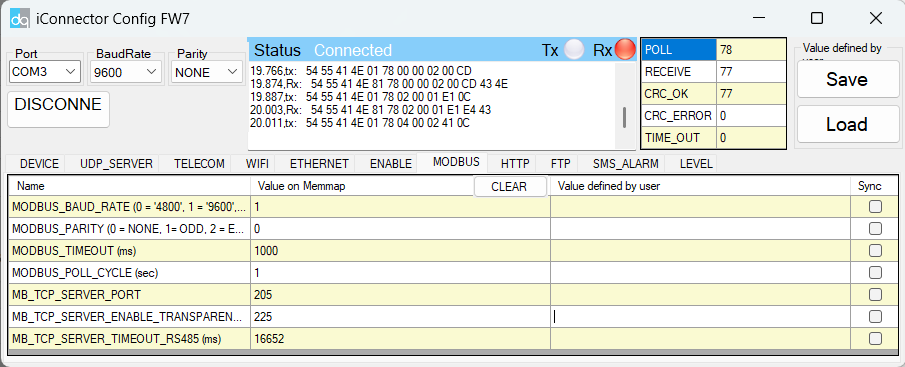
1.4 Configuration Modbus communication parameters for iConnector
Click Modbus tab, configure Modbus communication parameters for RS485 port ( baud rate, parity, stop bit, time out, poll cycle) to match up with Modbus slave device
1.5 Register iConnector on Globiots
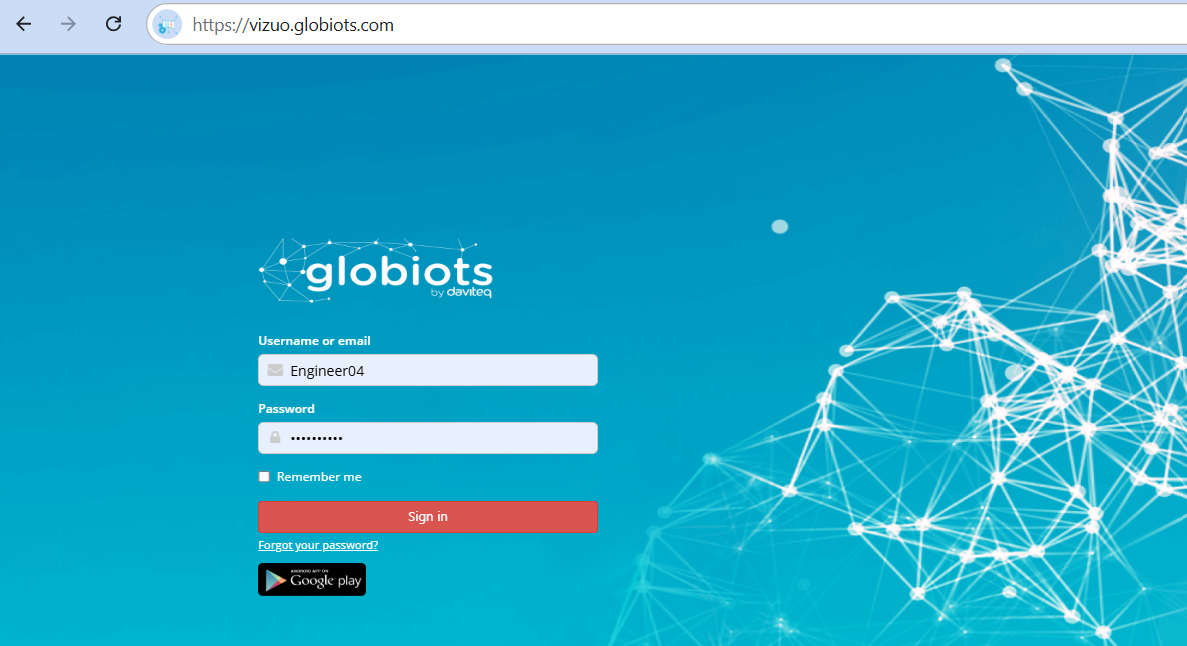
- Access to Vizuo Globiots via the link https://vizuo.globiots.com and login to the system with the username and password supplied Daviteq.
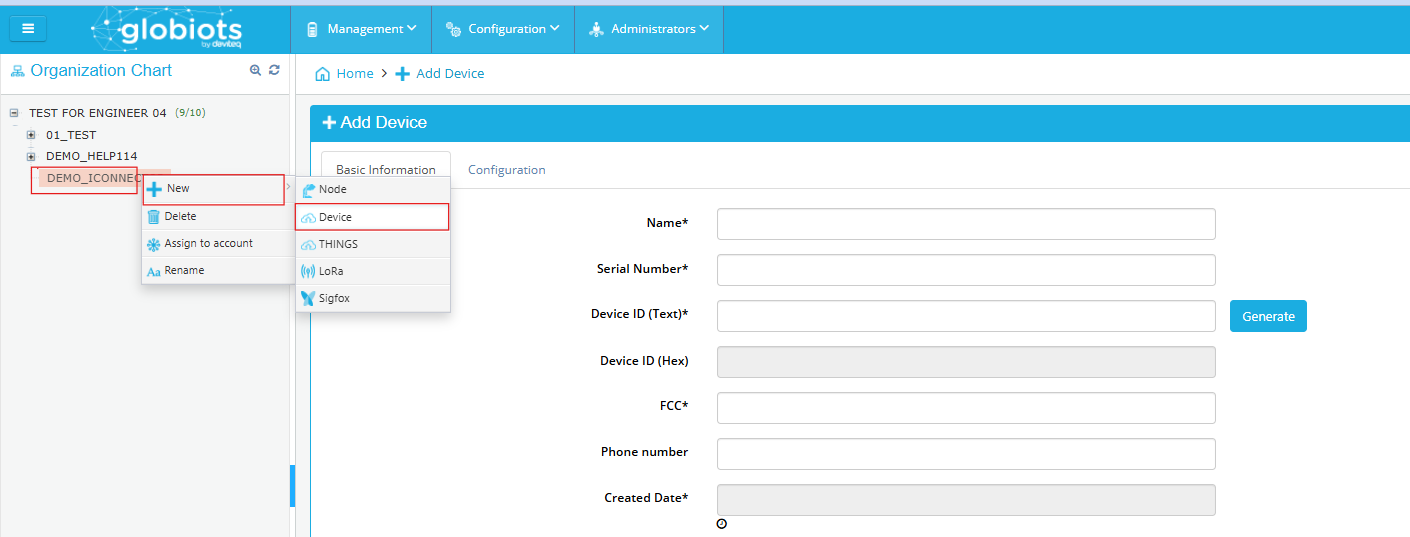
- Register the iConnector into Globiots
- RIGHT-CLICK on the corresponding site in the Organization Chart => New=>Device
-
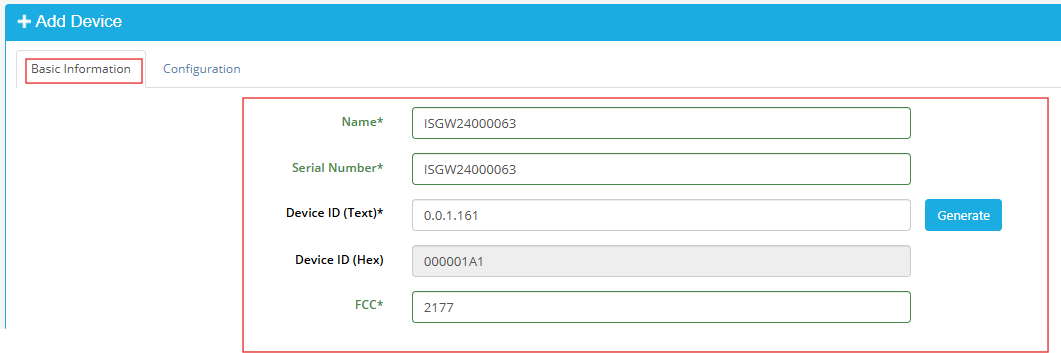
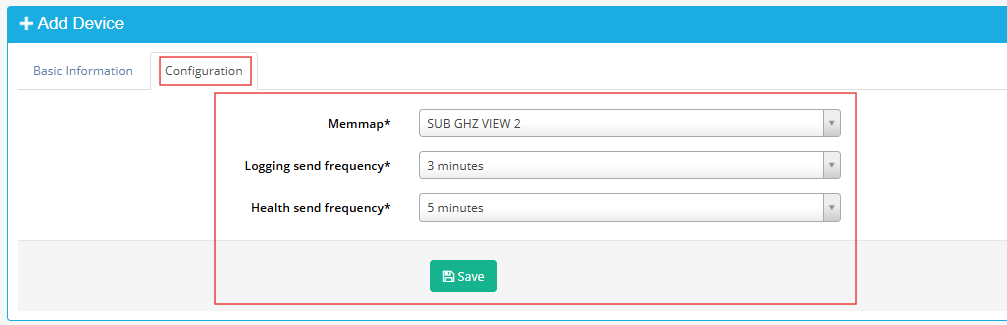
- There are some fields must be configured, including Name, Serial number, Device ID, FCC, Memmap, Logging send frequency, Health send frequency. After the fields were configured => Click Save button
Fields Description Name Optional name, must be 12 characters Serial number Serial number of iConnector
*Taken from step 1.2Device ID Click Generate button in the software FCC FCC of iConnector
*Taken from step 1.2Memmap Choose 4.1.4-9600-RD1 Logging send frequency Choose 5 minutes Health send frequency Choose 5 minutes
- There are some fields must be configured, including Name, Serial number, Device ID, FCC, Memmap, Logging send frequency, Health send frequency. After the fields were configured => Click Save button
1.6 Check iConnector connection on Globiots
- After configure successfully (step 1.1-1.4), the iConnector will connect to Globiots server automatically;
- The LED Network on iConnector will be 1Hz flashing
- Using the provided account of Globiots server, log in to the Globiots system to check the status of iConnector;
+ If connected, the iConnector icon on Organization Chart section will be Blue color;
+ If not connected, the icon is still Grey color;
The iConnector must be powered by configuration tool during this process
II. iConnector Installation and Wiring
2.1 Installation location
Depend on what kind of iConnector, the location of installation will be considered carefully.
2.1.1 if the iConnector has built-in Sub-GHz Wireless Co-ordinator or Wireless Bridge:
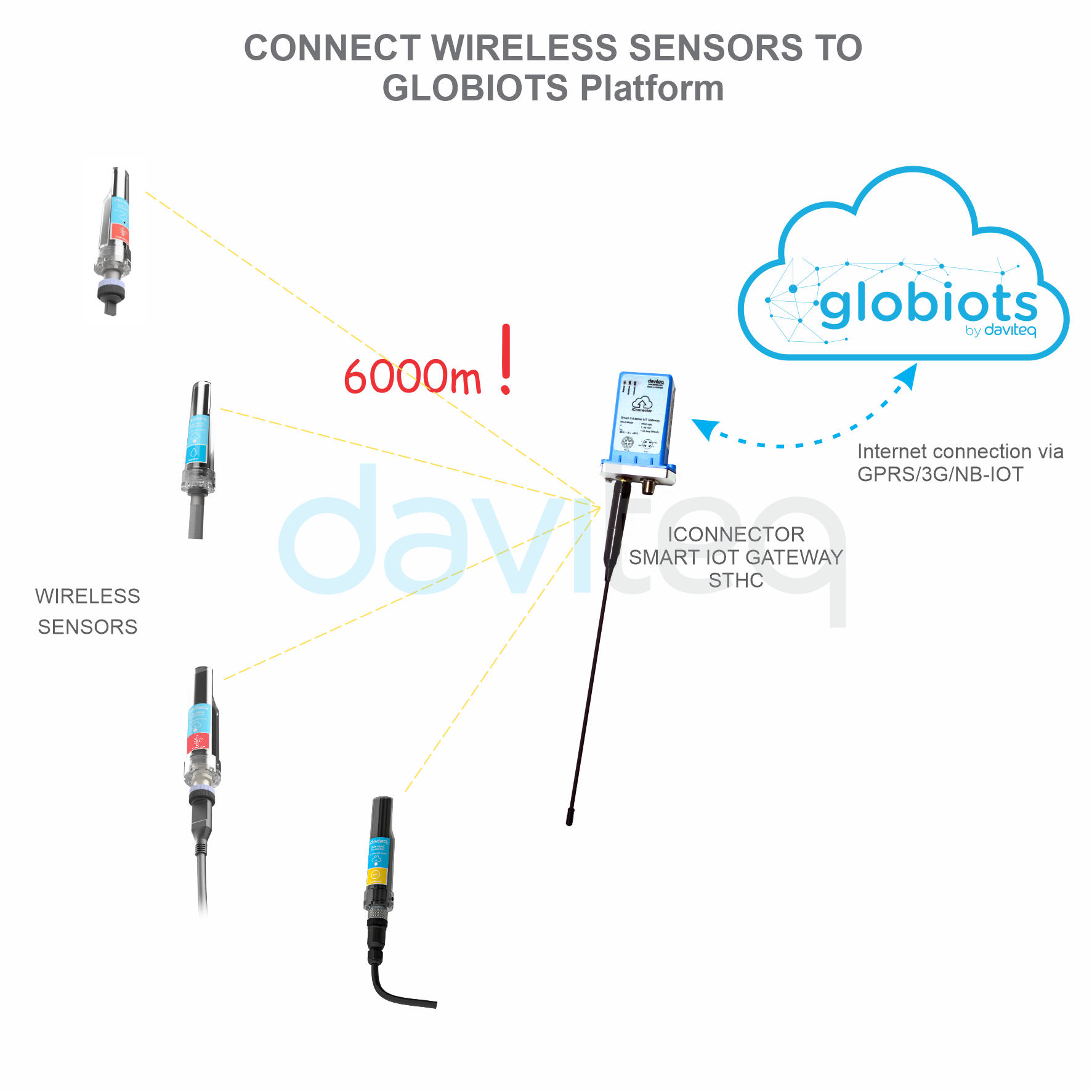
To maximize the distance of transmission between Sub-GHz wireless sensor and iConnector, the ideal condition is Line-of-sight (LOS) between the Wireless sensor and iConnector. In real life, there may be no LOS condition. However, the Wireless sensor still communicates with iConnector, but the distance will be reduced significantly.
- The antenna of Sub-GHz Wireless Co-ordinator of Wireless Bridge must be placed above ground as high as possible, not lower than 2m. We recommend the minimum is 4m;
- It's better to place the antenna outdoor, on top of the roof of building, house, warehouse...;
- It's not good if the antenna is place indoor but the wireless sensor is outdoor;
- Only when all the wireless sensors are indoor, then you can place the antenna of wireless co-ordinator indoor, too;
ATTENTION:
DO NOT install the Wireless sensor or its antenna inside a completed metallic box or housing, because the RF signal can not pass through the metallic wall. The housing is made from Non-metallic materials like plastic, glass, wood, leather, concrete, cement…is acceptable.
2.1.2 if the iConnector has Cellular connectivity like 2G, 3G or 4G:
- We highly recommend to install the iConnector outdoor or outside of the cabinet so that it can have strong signal of cellular;
- Do not put iConnector inside a metallic box as the cellular can not go thru the metal sheets;
- Incase the iConnector must be place inside a box for better protection, please use the box with plastic materials like ABS, ASA, Polycarbonate, Fiber Glass...
2.1.3 if the iConnector has WiFi connectivity:
- We highly recommend to install the iConnector at the place has strong coverage of WiFi signal;
- Do not put iConnector inside a metallic box as the WiFi signal can not go thru the metal sheets;
- Incase the iConnector must be place inside a box for better protection, please use the box with plastic materials like ABS, ASA, Polycarbonate, Fiber Glass...
2.1.4 if the iConnector has Ethernet connectivity:
- We highly recommend to install the iConnector at the place for easy access and check LED status
2.2 Mounting bracket for installation
2.2.1 Cellular iConnector:
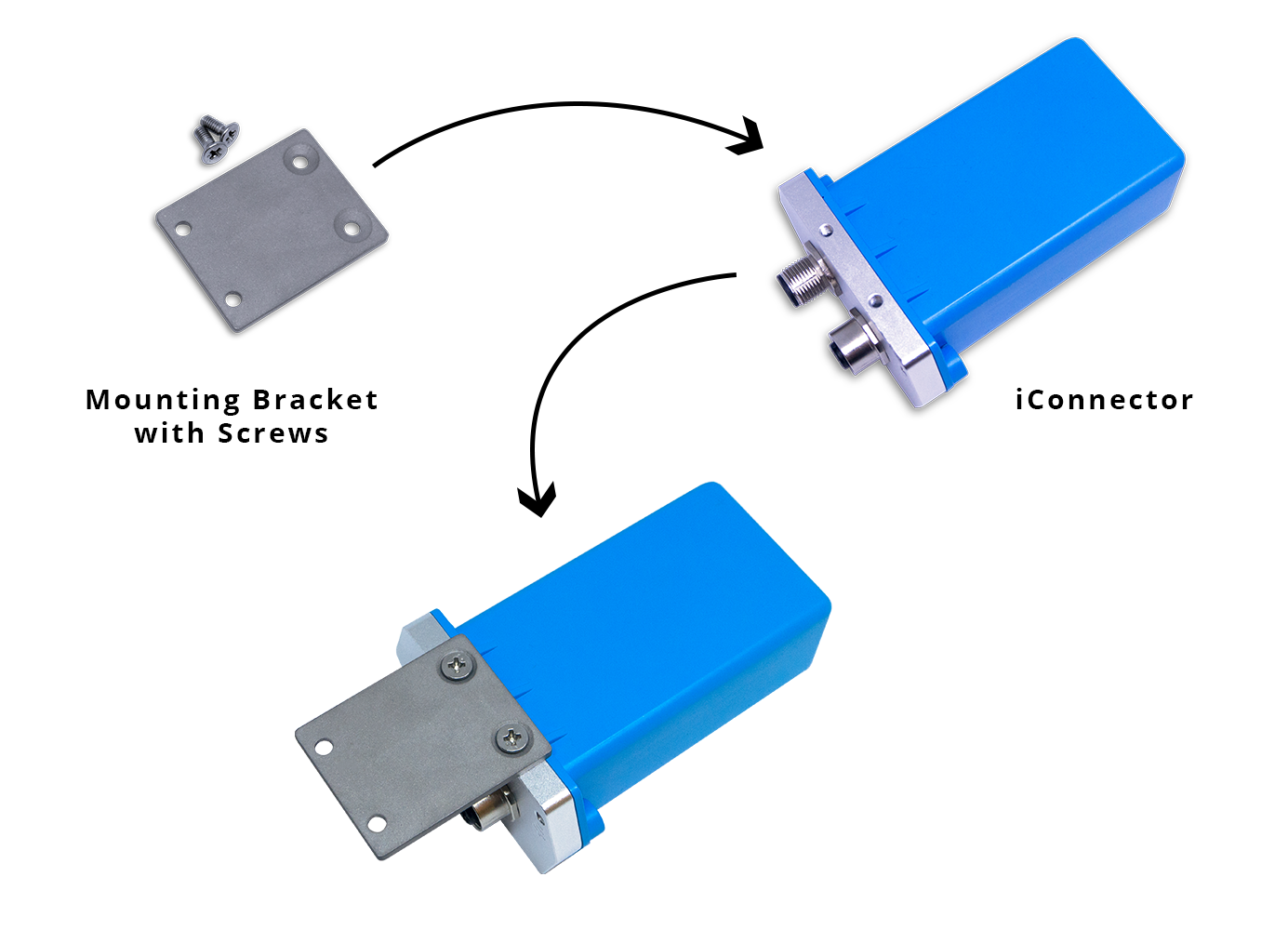
- The mounting bracket is made from hard metallic material. Following to these steps as the below picture
2.2.2 WIFI and Ethernet iConnector:
- There are 02 holes for screwing at the left and right of housing.
- These holes are covered by the cover.
- Open the cover, you can access the hole for screwing.
- Using screw with size 4mm diameter maximum.

2.3 Wiring
2.3.1 Wiring for wired slave device
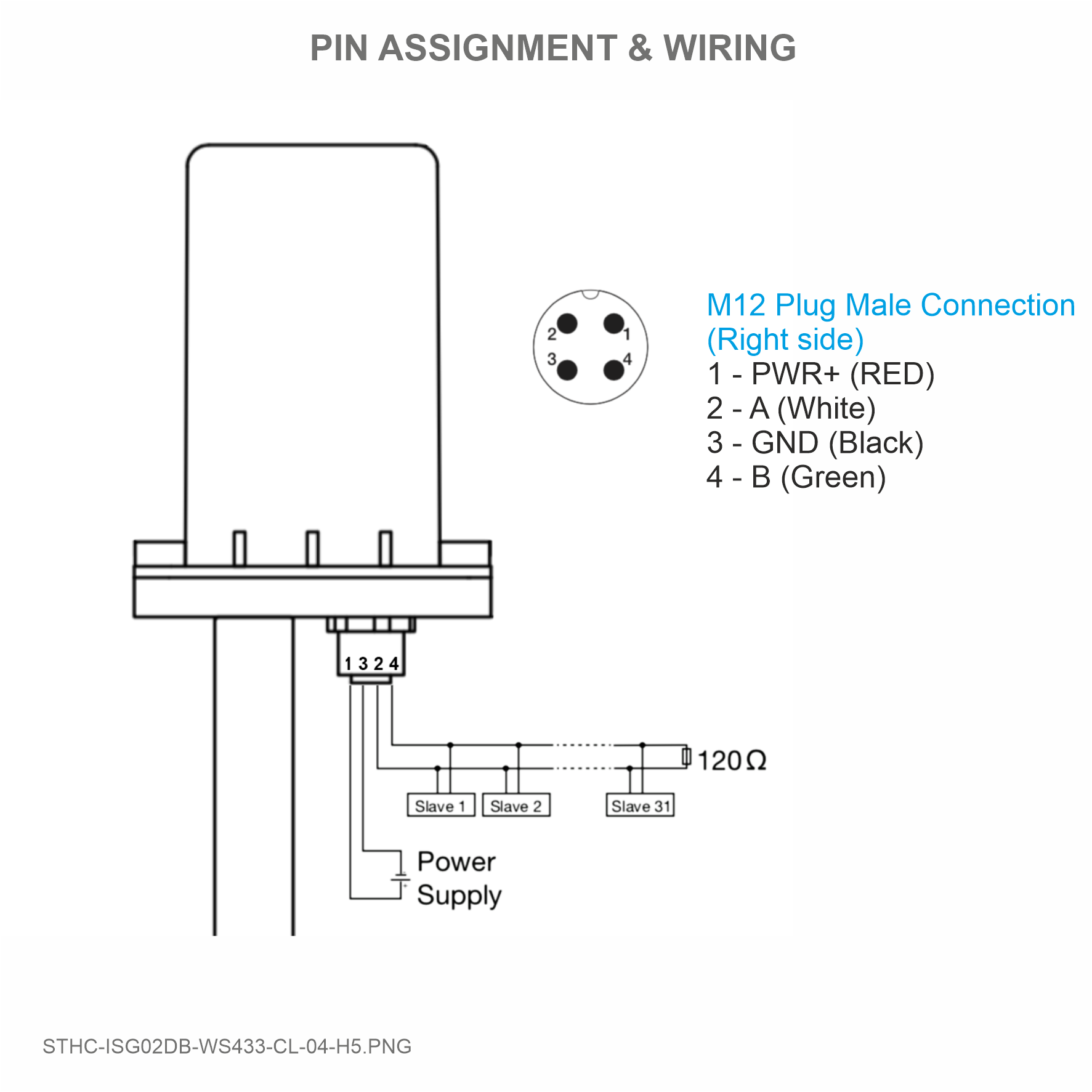
Connect the modbus RTU slaves to the iConnector via RS485 protocol. Pin 2 is RS485+ (A), Pin 4 is RS485- (B)
III. Globiots Configuration to read Slave Device Modbus Parameter
3.1 Configure Modbus Parameter on Globiots
Login Globiots with provided user and password
Click on Device, right-click, select Parameter
In List Parameters Page
• “Import Parameter”: click to Import Parameters from excel file. Excel file must have default structure.
• “Export Parameter”: click to export parameter to excel file.
• “Add parameter”: click to add a new parameter.
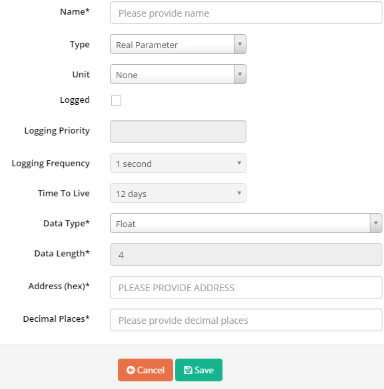
o Name: parameter name
o Type: Real Parameter or Virtual parameter
Real Parameter: Parameter from iConnector
Virtual Parameter: Parameter only in Server. Virtual parameter is create from formula of one or multi real parameter
If type is Virtual parameter, formula in Expression should be added
Mathematical Operators
|
Operator |
Description |
|
+ |
Additive operator / Unary plus |
|
- |
Subtraction operator / Unary minus |
|
* |
Multiplication operator, can be omitted in front of an open bracket |
|
/ |
Division operator |
|
% |
Remainder operator (Modulo) |
|
^ |
Power operator |
Boolean Operators
|
Operator |
Description |
|
= |
Equals |
|
== |
Equals |
|
!= |
Not equals |
|
<> |
Not equals |
|
< |
Less than |
|
<= |
Less than or equal to |
|
> |
Greater than |
|
>= |
Greater than or equal to |
|
&& |
Boolean and |
|
|| |
Boolean or |
Supported Functions
|
Function* |
Description |
|
NOT(expression) |
Boolean negation, 1 (means true) if the expression is not zero |
|
IF(condition,value_if_true,value_if_false) |
Returns one value if the condition evaluates to true or the other if it evaluates to false |
|
RANDOM() |
Produces a random number between 0 and 1 |
|
MIN(e1,e2, ...) |
Returns the smallest of the given expressions |
|
MAX(e1,e2, ...) |
Returns the biggest of the given expressions |
|
ABS(expression) |
Returns the absolute (non-negative) value of the expression |
|
ROUND(expression,precision) |
Rounds a value to a certain number of digits, uses the current rounding mode |
|
FLOOR(expression) |
Rounds the value down to the nearest integer |
|
CEILING(expression) |
Rounds the value up to the nearest integer |
|
LOG(expression) |
Returns the natural logarithm (base e) of an expression |
|
LOG10(expression) |
Returns the common logarithm (base 10) of an expression |
|
SQRT(expression) |
Returns the square root of an expression |
|
SIN(expression) |
Returns the trigonometric sine of an angle (in degrees) |
|
COS(expression) |
Returns the trigonometric cosine of an angle (in degrees) |
|
TAN(expression) |
Returns the trigonometric tangens of an angle (in degrees) |
|
COT(expression) |
Returns the trigonometric cotangens of an angle (in degrees) |
|
ASIN(expression) |
Returns the angle of asin (in degrees) |
|
ACOS(expression) |
Returns the angle of acos (in degrees) |
|
ATAN(expression) |
Returns the angle of atan (in degrees) |
|
ACOT(expression) |
Returns the angle of acot (in degrees) |
|
ATAN2(y,x) |
Returns the angle of atan2 (in degrees) |
|
SINH(expression) |
Returns the hyperbolic sine of a value |
|
COSH(expression) |
Returns the hyperbolic cosine of a value |
|
TANH(expression) |
Returns the hyperbolic tangens of a value |
|
COTH(expression) |
Returns the hyperbolic cotangens of a value |
|
SEC(expression) |
Returns the secant (in degrees) |
|
CSC(expression) |
Returns the cosecant (in degrees) |
|
SECH(expression) |
Returns the hyperbolic secant (in degrees) |
|
CSCH(expression) |
Returns the hyperbolic cosecant (in degrees) |
|
ASINH(expression) |
Returns the angle of hyperbolic sine (in degrees) |
|
ACOSH(expression) |
Returns the angle of hyperbolic cosine (in degrees) |
|
ATANH(expression) |
Returns the angle of hyperbolic tangens of a value |
|
RAD(expression) |
Converts an angle measured in degrees to an approximately equivalent angle measured in radians |
|
DEG(expression) |
Converts an angle measured in radians to an approximately equivalent angle measured in degrees |
Supported Constants
|
Constant |
Description |
|
e |
The value of e, exact to 70 digits |
|
PI |
The value of PI, exact to 100 digits |
|
TRUE |
The value one |
|
FALSE |
The value zero |
|
NULL |
The null value |
Note: Virtual parameter can't use for event.
Example 1: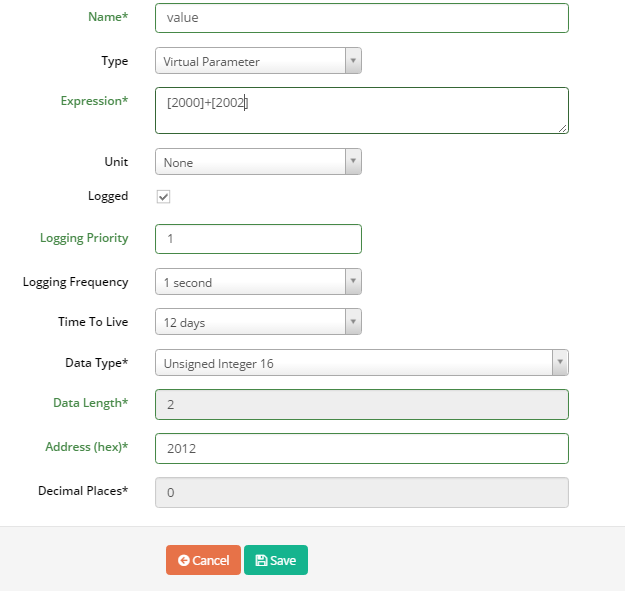 Value of Virtual Parameter have address at 2012 is calculated as follow [2012] = [2000] + [2002. ]In which address 2000 and 2002 are two real parameters
Example 2:
IF [2000]>10 then [2005]=1
IF [2000]<=10 then [2005]=2
Example 3:
IF [2000]=1 And [2005]=2 then [2010]=5
IF [2000]=!1 And [2005]=!2 then [2010]=[2007]+10
Example 4:
IF [2000]>10 then [200A]=1
IF [2000]<10 And [2010]=1 then [200A]=5
IF [2000]<10 And [2010]=!1 then [200A]=10
o Unit: Unit of parameter
o Logged: Tick to permit saving value of parameter into database
o Logging Priority: enter any value
o Logging Frequency: select frequency to log data from meter/sensor/device/instrument into iConnector memory
o Time to live: select how long data will be stored in database
o Data Type: Type of parameter
o Data Length: Length of data type, byte unit, display automatically with data type. If data type is String, data length should be input
o Address: Address in iConnector memory map to store value of parameter
o Decimal Places: number of decimal after the comma.
• Save: click to finish
• “Delete All”: click to delete selected parameters
• Edit: click to edit this parameter
• Delete: delete parameter
Note: After Configure Parameter, you must synchronize (refer to 5.11 Synchronize Device for more details)
3.2 Configure Modbus Command
- Select Device, right-click, select Modbus Command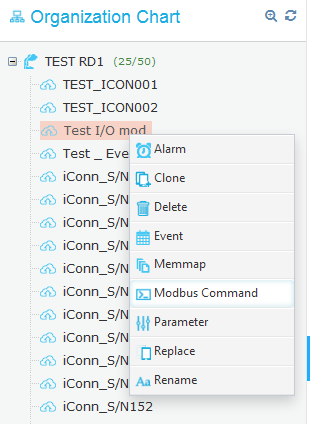
- Modbus Configuration page displays as below: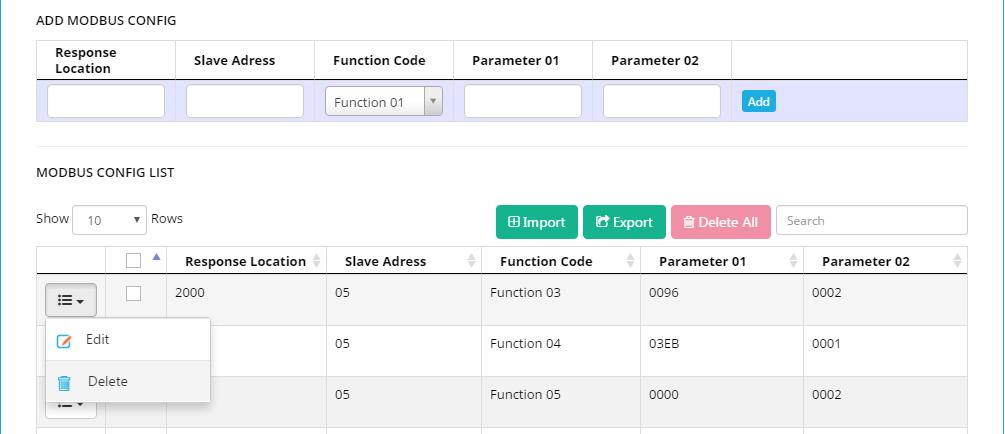
• MODBUS CONFIG LIST (1)
o Button “Edit”: click to edit Modbus Command. Modbus Command will display in (2) to edit
o Button “Delete”: click to delete Modbus Command.
o Button “Import”: click to import Modbus Command list from excel file
o Button “Export”: click to export Modbus Command list to excel file
o Button “Delete All”: click to delete all Modbus Command
• ADD MODBUS CONFIG (2)
o Response Location: Address of parameter in iConnector
o Slave ID: Modbus ID of meter/sensor/device/instrument which connect to iConnector through RS485 port
o Function Code: Function Code of Modbus Command. Function Code consist of read function and write function. In user manual of meter/sensor/device/instrument should mention supported function code.
o Parameter 01: Starting address of parameter in memory map of meter/sensor/device/instrument
o Parameter 02: Number of registers of parameter in memory map of meter/sensor/device/instrument
o Button “Add”: Click to add new Modbus Command
o Button “Update”: After click “Edit” button in (1), “update” will display. After editing Modbus command and click “Update” to save change.
Note:
Response Location in iConnector for read Modbus data :0x2000 -> 0x21FF
Response Location in iConnector for write Modbus data: 0x3000 -> 0x307F
After configuring, Modbus Command should be synchronized to iConnector (refer to 5.11 Synchronize Device for more details)
Example:
Configure modbus command for reading parameter Voltage, data type: float, from address 0000 on power meter (ID=32) and store at address 2000 (hex) on iConnector, using function 04 of modbus command. The configuration as follow:
Response Location = 2000
Slave address = ID=32 (decimal) =20 (Hexa)
Parameter 01 = Start Address = 0000
Parameter 02 = Number of register of parameter. Data type = float (4 bytes) = 02 register
3.3 Synchronize Modbus Parameter configurations and Modbus Command configurations to iConnector
Right click Device name, select Sync, and tick all type of configuration to synchronize to iConnector, click Sync, enter password to confirm permission
After successful synchronization, Text Synchronized should appear on 4 line of dialog box. If iConnector disconnected, message should appear to inform that synchronization will implement once iConnector connect to server.
IV - Globiots configuration for dashboard and report
4.1 Dashboard
4.1.1 Dashboard Description
Dashboard views input text, current value and value from database. Each Dashboard is organized in one tab. When value is from database, dashboard will update the value after specific time. Dashboard consists of containers which contain widgets inside.
4.1.2 View Dashboard
- In Home screen, select menu Management → select sub-menu Dashboard to display current value of parameters.
- Screen of status “Dashboard”:
- Screen of status “Stop” of Dashboard:
• (1): Display list of Dashboard tabs which user are assigned to view
• Button “Run”: click to run Dashboard.
• Button “Stop”: click to stop selected Dashboard.
• Button “Delete”: click to delete Dashboard
• Button “Edit”: click to edit Dashboard
• Button “Add Container”: click to add new Container in Dashboard
• Button “Export”: click to export Dashboard to Excel File
• Button “Import”: Click to import Dashboard to Excel File
4.1.3 Create new Dashboard
- In Dashboard screen, click symbol “+” to create new tab
- New window display
• Name: Name of new Dashboard tab
• Stop realtime after: Running time of Dashboard to get realtime data from iConnector. After this period of time, Dashboard will stop to get realtime data from iConnector.
Click button “Run” on top right corner to continue to get realtime data
• Push Interval: Frequency to get realtime data from iConnector
Click Save to complete creating new Dashboard
4.1.4 Create New Container
- In Dashboard tab, click Add Container to add new Container
• Title: Name of container
• Format: Font size, Style, Text color, Text align, Background.
• Poll Interval: Frequency to get logged data from database to view on Dashboard
• Layout: Select layout of container. There are 07 layouts select
Click Save to complete creating Container
4.1.5 Configure a Container
(1): Edit Container
(2): Delete container.
Click SETTING icon to Edit Container. Following screen will appear
- Click Add Widget to add new widget
Note: Stop Dashboard before configure Container/Widget
4.1.6 Widget
4.1.6.1 Widget Description
Widget is a basic element of Dashboard to view constant, value of parameter. Currently, Vizuo has below widgets
After select widget click Add to add new widget to Container
4.1.6.2 Widget Table
- Paging: Tick to view table more than one page
- Border: Select type of border: None, Border and Inside
- New Column: Click to add new column
- New Row: Click to add new row
•  : Move column
•  : Close/Delete column or row
- Configure Row
- After clicking SETTING icon, configuration screen for new row will appear
Choose Data type: Constant (input text), Data from Database (Device Name, Parameter Name, Unit of Parameter, Last value of parameter in Database, time stamp of last value), Data from device (Realtime Data or Current Data). Realtime data is data push from iConnector and Current Data is data pull from iConnector
Up/down icon: Tick to add up/down icon. Up icon appears when last value is less than current value whereas down icon appears when last value is greater than current value. These icons are available when realtime data is displayed in cell
Mapping: tick Mapping and list out value and mapped text, then click + icon to add mapping value. Mapping should be used to view meaningful text instead of value
4.1.6.3 Widget Line Chart
Click SETTING icon to configure widget Line Chart, the following screen appear
• Title: Line Chart name
• Style: Format of Title
• YAxis: Fixed or Auto. If choose Fixed, enter min & max value. If select Auto, software will specify Max of Y axis based on value of displayed parameter.
• Type: Data type of parameter to view (Data from device or from database)
Type Device: Realtime data and display Max point value on line chart
Type Database: Logged data from database, time period include: Today, Yesterday, Last 3 days or Custom (From…To)
• Line configuration: Select displayed parameter and displayed label (input text, parameter name or device name)
Click Add button to add parameter to line chart. A line chart could view
some parameters
4.1.6.4 Linear Gauge
Click SETTING icon to configure widget Line Gauge, the following screen appear
• Title: Name
• Style: Format of title
• Direction: Vertical or Horizontal Linear Gauge
• Min, Max: Range of Gauge
• Range Color: Auto or Custom
Auto: Color of Gauge changes according to value of parameter
Custom: Configure specific color to specific range of value of parameter
• Data: Select type of display parameter (last logged data from Database or current value/realtime value from Device
• Device/Parameter: Select displayed parameter
• Write: Tick to enable to write value to parameter. Writing value to parameter by holding and drag on body of Linear Gauge
Click Save Changes to complete configuration
4.1.6.5 Solid Gauge
Click SETTING icon to configure widget Solid Gauge, the following screen appear
• Title: Name
• Style: Format of title
• Min, Max: Range of Gauge
• Range Color: Auto or Custom
Auto: Color of Gauge changes according to value of parameter
Custom: Configure specific color to specific range of value of parameter
• Data: Select type of display parameter (last logged data from Database or current value/realtime value from Device
• Device/Parameter: Select displayed parameter
Click Save Changes to complete configuration
4.1.6.6 Circular Chart
Click SETTING icon to configure widget Solid Gauge, the following screen appear
• Title: Name
• Style: Format of title
• Min, Max: Range of Chart
• Range Color: Auto or Custom
• Auto: Color of Chart changes according to value of parameter
• Custom: Configure specific color to specific range of value of parameter
• Data: Select type of display parameter (last logged data from Database or current value/realtime value from Device)
• Device/Parameter: Select displayed parameter
• Write: Tick to enable to write value to parameter. Writing value to parameter by holding and drag on body of Circular Chart
Click Save Changes to complete configuration
4.1.6.7 Column Chart
Click SETTING icon to configure widget Solid Gauge, the following screen appears
• Title: Column Chart name
• Style: Format of Title
• Type: Data type of parameter to view (Data from device or from database)
• Type Device: Realtime data
• Type Database: Logged data from database, last value or value series in time period include: Today, Yesterday, Last 3 days or Custom (From…To)
• Column configuration: Select displayed parameter and displayed label (input text, parameter name or device name)
Click Add button to add parameter to column chart. A column chart could view some parameters
4.1.6.8 Control Panel
Click SETTING icon to configure widget Control Panel, the following screen appears
• Tittle: Name of Control Panel
• Style: Format for tittle
• Column: Number of column of Control Panel
• Row: Number of row of Control Panel
• Click Add button to add new symbols
Choose one symbol and click Add
• Configure Simple Button
After adding Simple Button, following screen appear:
• Tittle: Name of Button
• Style: Format of Tittle/Label
• Label: Label on Button
• Parameter: Select written parameter. This parameter should have address in range 3000-307F
• Value: Value to write to parameter. If this value is blank, when the button is clicked the user should enter the value.
Click Add to add button. User could add some buttons in one widget
• Configure Advanced Button
After adding Advanced Button, following screen appear:
• Tittle: Name of Button
• Style: Format of Tittle/Label
• Label: Label on Button
• Parameter for reading: Select reading parameter.
• Operator: Logical Operator of Reading parameter and mask
• Mask: Mask to calculate written value. Mask format is binary or Hexa
• Parameter for reading: Select written parameter. This parameter should have address in range 3000-307F. Written value is the result of reading value and mask with logical operator
Click Add to add button. User could add some buttons in one widget
• Configure Led
Led will change its color when parameter changes value.
After adding Advanced Button, following screen appear
• Tittle: Tittle of LED
• Style: Format of LED tittle
• Parameter: Select Parameter to display
• Label: Label for LED
• Mapping Table: Define list of displayed label and color according to value of parameter
• Click Add to add LED
4.1.6.9 Map
Map shows location of iConnector (longitude and latitude) on map
Click to configure widget Map:
• Tittle: Name of Map
• Style: Format of Tittle
• Device List: iConnector list to display location (longitude and latitude)
• Device: Select iConnector name
• Location: Configure longitude and latitude parameter. Location are static or dynamic
If location is static, user enter value of longitude and latitude
If location is dynamic, configure longitude and latitude parameter
4.1.6.10 EMS Report
EMS Report views report for energy consumption during period of time
Click SETTING icon to configure widget EMS report, the following screen appears:
• Tittle: Report title
• Style: Format of tittle
• Report type: Daily, Weekly, Monthly
• Data range: Today, yesterday, last month, this month, last week, this week
• Column Configuration: Configure displayed value of parameter and displayed name of parameter
Click Add to add parameter for report
4.1.6.11 Pie Chart
Pie Chart compares values between some parameters. Click to configure widget EMS report, the following screen appears:
• Tittle: Tittle of pie chart
• Style: Format of tittle
• Type: Data type, realtime data or current value of device or last value in database
• Configuration: Configure displayed value and displayed name of parameter
4.2 Report
4.2.1 Create a new report
- To create a new report:
• In menu Management, select Report
• In Report page select “+ ” to create a new tab
Enter full information
o Name: Name of Report tab
o Report Type: EMS (for energy), CNC (for CNC machine), Historical Trending (for parameter trend)
o Parameter Configuration:
Name: Name of parameter which display in report. Name might input text or name of parameter.
Device: select Device
Parameter: select parameter of device which you want display
Click “Add” to add parameter. A report might have some parameter
o After complete adding parameter, click “save” to finish
4.2.2 Configure Report
- In Report page, select Report name which you want configure
• Click “Delete” to delete report
• Click “Edit” to edit report
To edit available parameter, click SETTING icon in Action column, edit parameter, click Update
To delete parameter, click X icon in Action
To Add new parameter: enter full information and click “Add”
4.2.3 View report
Select Time in “From … To …” and click “Show” to view data of parameters on report tab
Click on name of parameter (below report) to temporarily ON/OFF parameter on report
4.2.4 Export report
V. Globiots configuration for HMI slave
5.1 Modbus Slave HMI operation
- HMI will be a Modbus slave to connect to iConnector via RS485 Modbus RTU
- Every 8 seconds, iConnector use schedule event to write values from other Modbus slaves to HMI
- HMI will be pre-coded to view these values on HMI screen
5.2 iConnector event configuration
After logging in Globiots, to configure Event: right click Device name and select Event. “The List Of Event” page displays as below: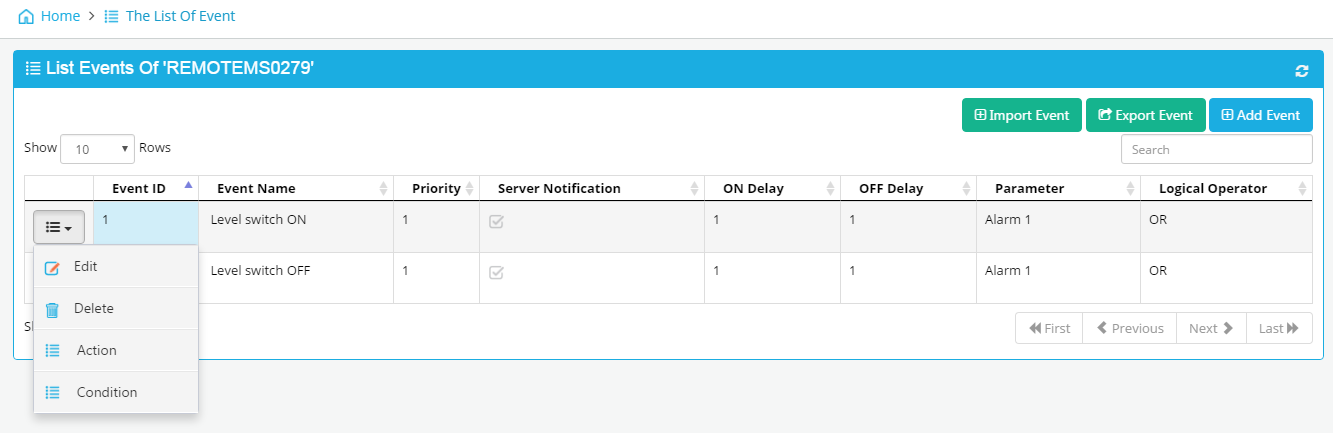
• Import Event: Import event from excel file
• Export Event: Export event to excel file
• Add Event: click to add a new event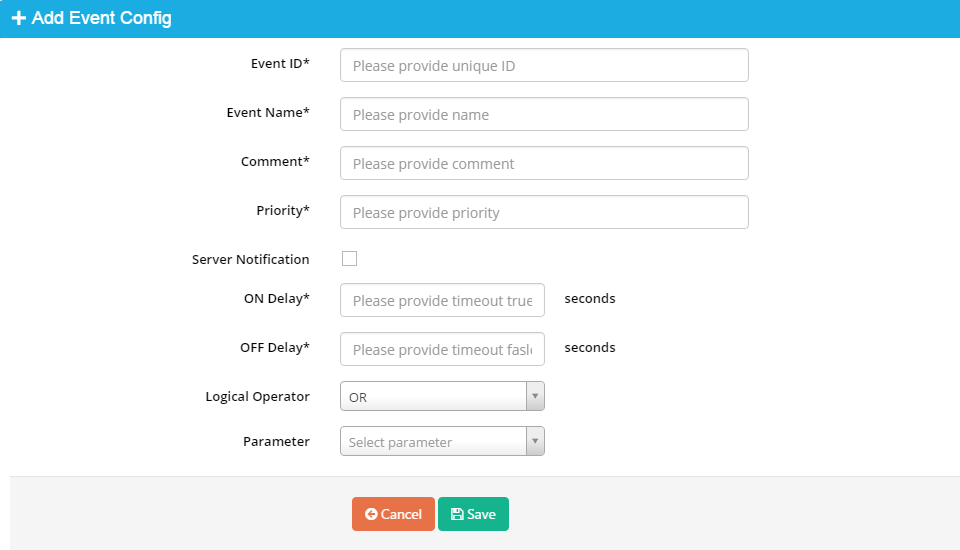
o Event ID: from 1 to 127 (event ID is only)
o Event name: name of event
o Comment: explain for event
o Priority: Any value
o On Delay: Delay time (second) when condition is true
o Off Delay: Delay time (second) when condition is false
o Logical Operator (AND/OR): Logical Operator for conditions of event
o Parameter: select parameter sent to server when event occur. Only display Real Parameter
o Click “Save” to finish
• Edit: Click to edit event
• Delete: Click to delete event
• Action: Click to configure action for event. An event might have some actions. The List of Actions page displays: 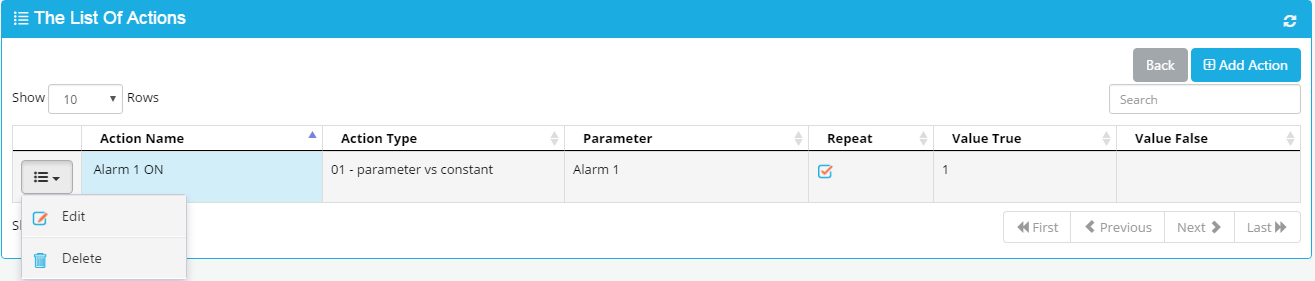
o Add Action: click to add a new action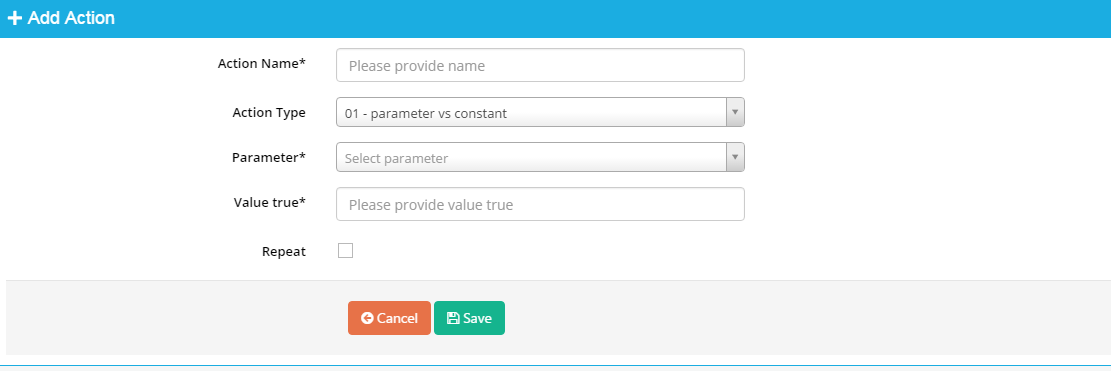
Action Name: Name of Action
Action Type: Select type of Action. There are 04 type of available action
1. Type 1: 01- Parameter vs constant: Action to assign constant to parameter if condition is true
2. Type 2: 02-parameter vs parameter: Action to assign constant to parameter if condition is true and false
3. Type 3: Action to assign value of source parameter to value of destination parameter if condition is true
4. Type 4: Action to assign value of source parameter to value of destination parameter if condition is true and false
Repeat: tick to implement action once condition is still true. If Repeat: is not ticked, the action only is implemented when condition from FALSE to TRUE.
Value true: constant assigned to parameter when condition is true
Value false: constant assigned to parameter when condition is false
Write Parameter: Destination parameter which is assigned value
Read Parameter: Source parameter
True Parameter: Source parameter if condition is true
False Parameter: Source parameter if condition is false
Save: click “save” to finish
o Edit: click to edit action of event
o Delete: click to delete action
Note: Written parameter in action must have address in range 3000-307F
• Condition: click to configure condition of event. An event might have one or multi conditions. Value of total condition is formed from logical operator of multi conditions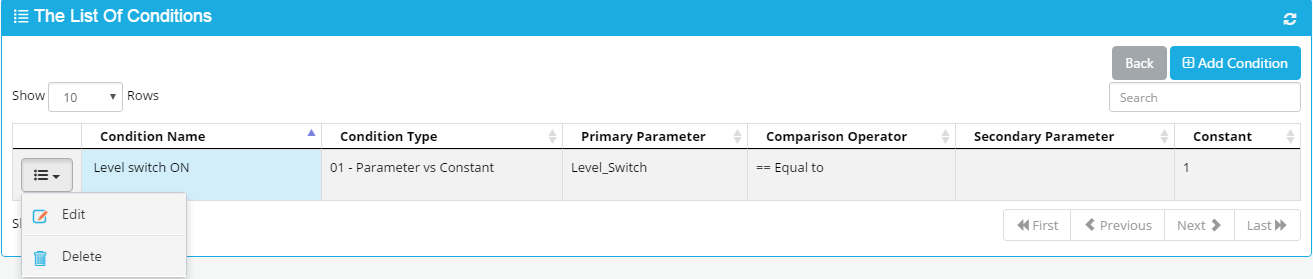
o Add Condition: click to add new condition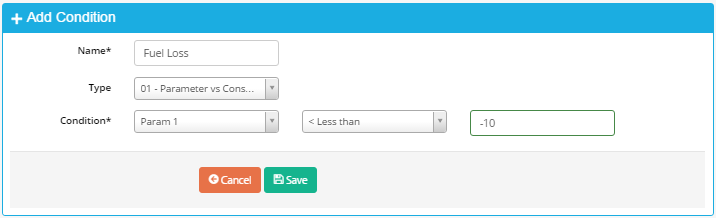
Condition Name: Name of condition
Condition Type: Type of condition. There are 3 types of condition
+ Type 1: 01- Parameter vs constant: Compare value of parameter to constant
+ Type 2: 02-parameter vs parameter: Compare value of parameter to value of another parameter
+ Type 3: 03- Parameter (bit) vs constant: Compare value of bit complex of parameter to constant
Condition: Compare value of a parameter to constant or value of a parameter to value of another parameter. Compare Operators are less than, less than or equal to, equal to, not equal, greater than, greater than or equal to
Click “Save” to finish
o Edit: click to edit condition of event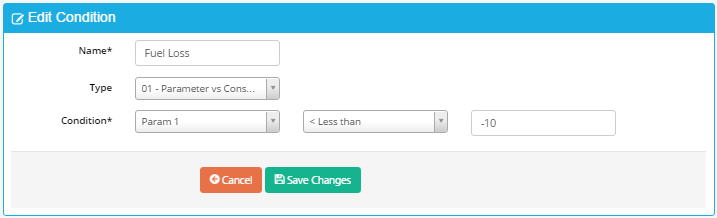
o Delete: click to delete a condition of event
Note:
Each Event have maximum 8 conditions
After configure Event, you must synchronized (refer to 5.11 Synchronize Device for more details)
Example:
Configure Event to create parameter Power Status:
Power Status =1 when iConnector Power Supply > 8 VDC and Main Meter Error=0 in
more than 2s.
Power Status=0 when iConnector Power Supply <=8 and Main Meter Error=0 in more
than 3 s.
When event occur, event will be sent to server
Configuration for this event, condition and action as follow: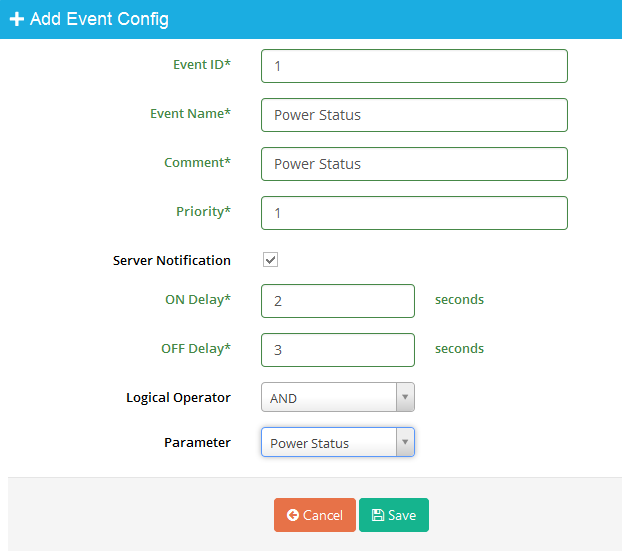
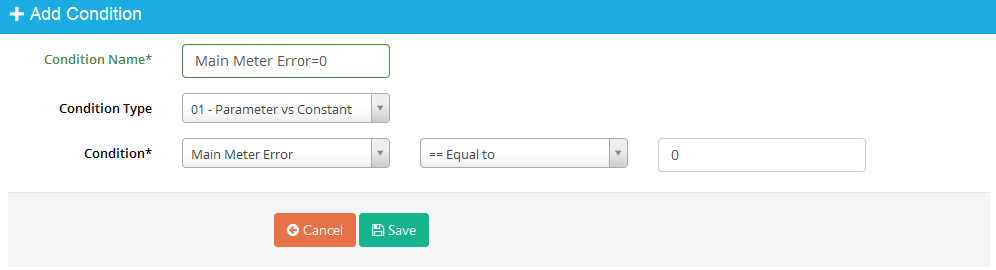
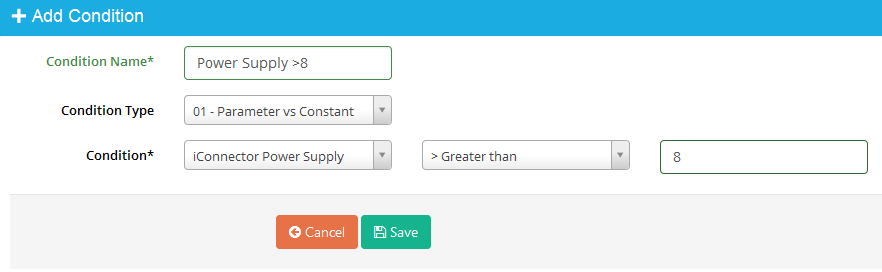
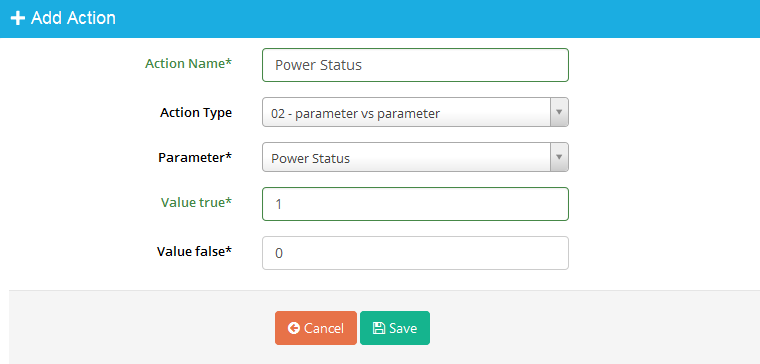
For schedule written to HMI slave device every 8 second, the event configuration as below:
- Condition:
Condition type: Use condition type 3 (Parameter (bit) vs constant: Compare value of bit complex of parameter to constant), bit 3
Condition parameter: iConnector second parameter will be use
- Action:
Action type: Use action type 3: Action to assign value of source parameter to value of destination parameter if condition is true
Source parameter: Parameters from slave devices except HMI slave device
Destination parameter: Parameter to HMI slave device