
1. Quick installation guide for WSNBM-AG
This manual is applied to the following products:
| Item code | Hardware version | Firmware Version | Firmware released date | Change information |
| WSNBM-AG-03S-XA | 1 | 1 | 25/Oct/2024 |
Initial firmware version |
1.1 Introduction
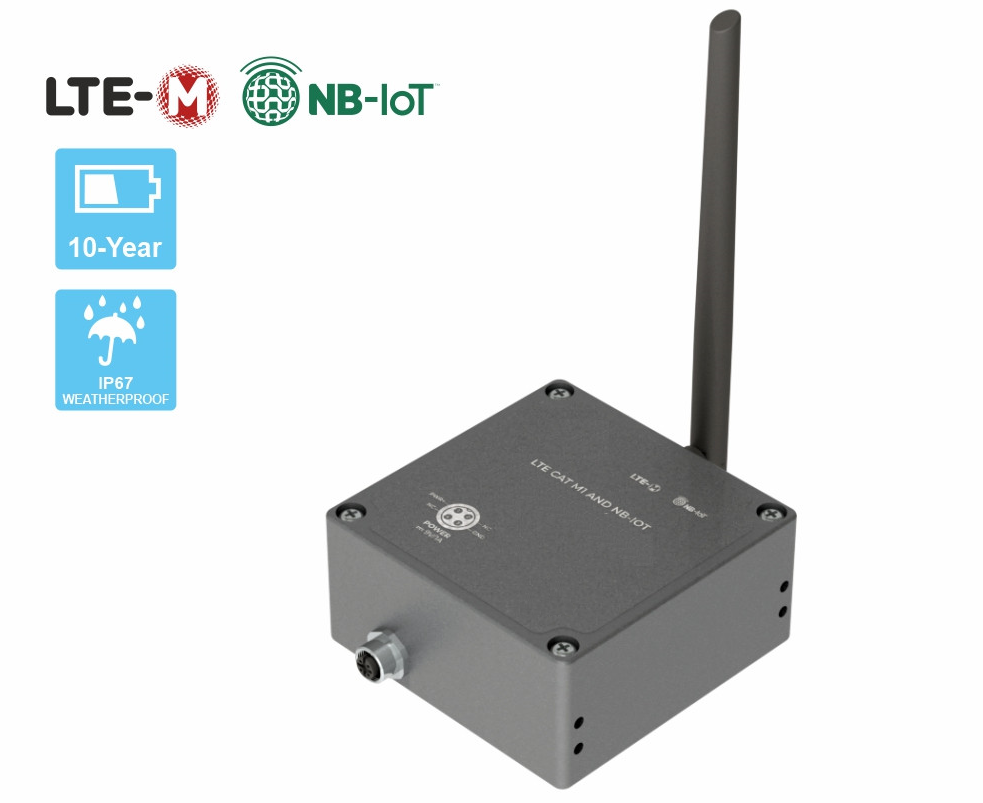
WSNBM-AG, a CATM1/NBIoT tilt sensor, is a device designed to measure X-axis tilt , Y-axis tilt and detect X-axis & Y-axis shock. The sensor includes acceleration& tilt module to measure XY accelerations and measure XY tilts. With the lightweight, efficient communication MQTT protocol, the reliable NBIoT/CATM1 connectivity and the powerful controller, the sensor could measure and transmit real-time tilt data (up to 100 Hz measurement frequency) with minimal overhead. Real-time data from tilt sensors facilitate to identify abnormal tilt of any object such as a Tower, Building, Tree, Electricity Tower, Telecom Tower, Bridges...
1.1.1. The MQTT sensor's system architecture
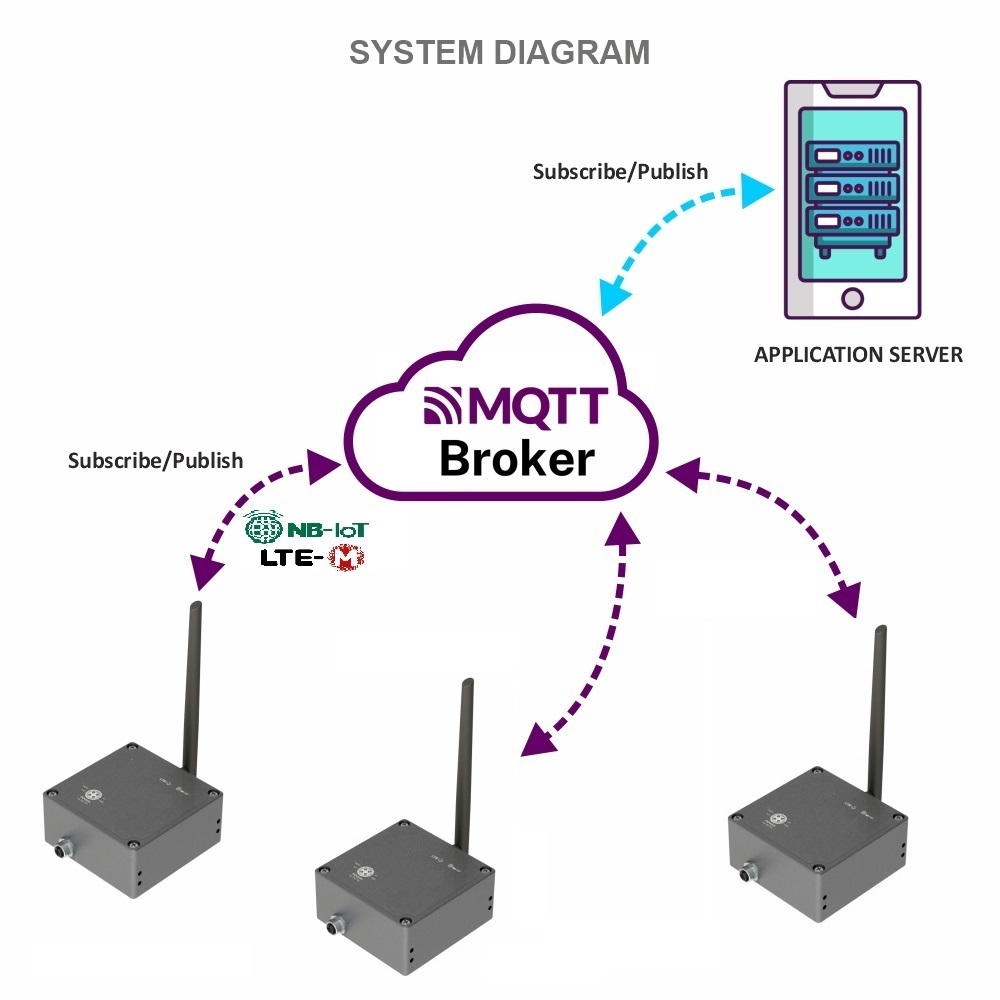
System components:
- Sensors: publish the data messages to the broker and subscribe request of configuration change messages from the application
- MQTT broker: is the server that receives the data messages from the sensors then route them to the application. In addition, the broker also receives request of configuration change messages from the application and then route them to the sensor
- MQTT application: subscribe the data messages from the sensor and publish request of configuration change messages to the sensor
1.1.2. How to set up the MQTT system?
Please follow these steps:
- Configure on MQTT broker: the user, password, QoS, CA file, SSL
- Configure on the sensor: MQTT configurations (host, port, user, password, CA file, SSL on/off, QoS, message retain), CAT M1/NB-IoT configurations (network category, frequency bands, RAT search sequence)
- Configure on the application: host, port, user, password, QoS, CA file
- Insert the CAT M1/NB-IoT SIM to the sensor, then insert the batteries/power supply. The sensor will publish the messages to the MQTT broker and then the broker will route the messages to the application
1.2 Application Notes
1.2.1. Applications List
Facility Monitoring, Flood Monitoring, Infrastructure Monitoring, Level Monitoring, Machine Health Monitoring, Safety Monitoring, Tilt Monitoring
1.1.2 Application Notes
- This AG tilt sensor measures the static tilt angle of the static object vs. the Gravity direction. Please do not use it for other angle measurements.
- It measures the static tilt angle of stationary objects or slow-moving objects such as Tree, Bridge, Pole, Tower, Crane, and Building...
- It does not measure the tilt angle of a quick-moving object like construction equipment...
1.3 When does device publish the topic?
The device will publish the topic following cases to MQTT brokers:
Case 1: When device is power-up, the device will publish the first topic called START_UP. The payload will tell the user the full device configurations and device health statuses.
Case 2: In every interval time (pre-configured), for example, 24 hours, it will publish the topic called HEARTBEAT. The payload will tell the user the full device configurations and device health statuses.
Case 3: If users want to get the value of device configurations and device health immediately, user could force the device to publish the CONFIG-HEALTH-CHECK topic. The device could be forced by applying the magnet key in more than 5s.
Case 4: During the commissioning, testing, or calibration sensor, the user can force the device to publish the topic to get the data immediately. This topic is called FORCE. The payload will provide data like raw measured value, scaled measured values, and device health. It can be forced by applying the magnet key on the reed switch in 1s;
Case 5: Then, in every interval time (pre-configured), for example, 10 minutes, it will publish the topic called CYCLE. The payload will tell the user the following data like measured values and device health. To change the cycle of data sending, you can change the value of the CYCLE_PERIOD parameter.
Case 6: If XY tit alarms are enable, when difference between average XY tilt for number of samples and corresponding tilt reference are greater or lower than corresponding tilt thresholds during number of sequential readings for alarm on, the device will publish TILT-ALERT topic. In addition, if the alert last more than period of alert cycle, the device will publish next TILT-ALERT topics. The payload contains values of tilts, tilt difference, alert period, alert cycle and the axis causing the alert.
Case 7: If XY acceleration alarms are enable, when XY acceleration for number of samples are greater or lower than corresponding acceleration thresholds during number of sequential readings for alarm on, the device will publish SHOCK-ALERT topic. In addition, if the alert last more than period of alert cycle, the device will publish next SHOCK-ALERT topics. The payload contains values of accelerations, alert period, alert cycle and the axis causing the alert.
Case 8: If the application requests to change device configurations, the application will publish the CONFIG-REQUEST topic to the MQTT broker and the device subscribe the CONFIG-REQUEST topic. After that, the device will change the configuration as request in the CONFIG-REQUEST topic and publish CONFIG-RECEIPT topic. The payload of CONFIG-RECEIPT topic contains the result of the configuration changes.
1.4 Default Configuration
Please refer to the END USER DEFAULT column in the memory map file at the section 1.9 Payload Document and Configuration Tables
1.5 Power Supply
Main power supply
- External Power 7.2-10 VDC, minimum 0.5A required.
Note: The configuration cable must be plugged out the configuration port before supplying the external power
Backup power supply
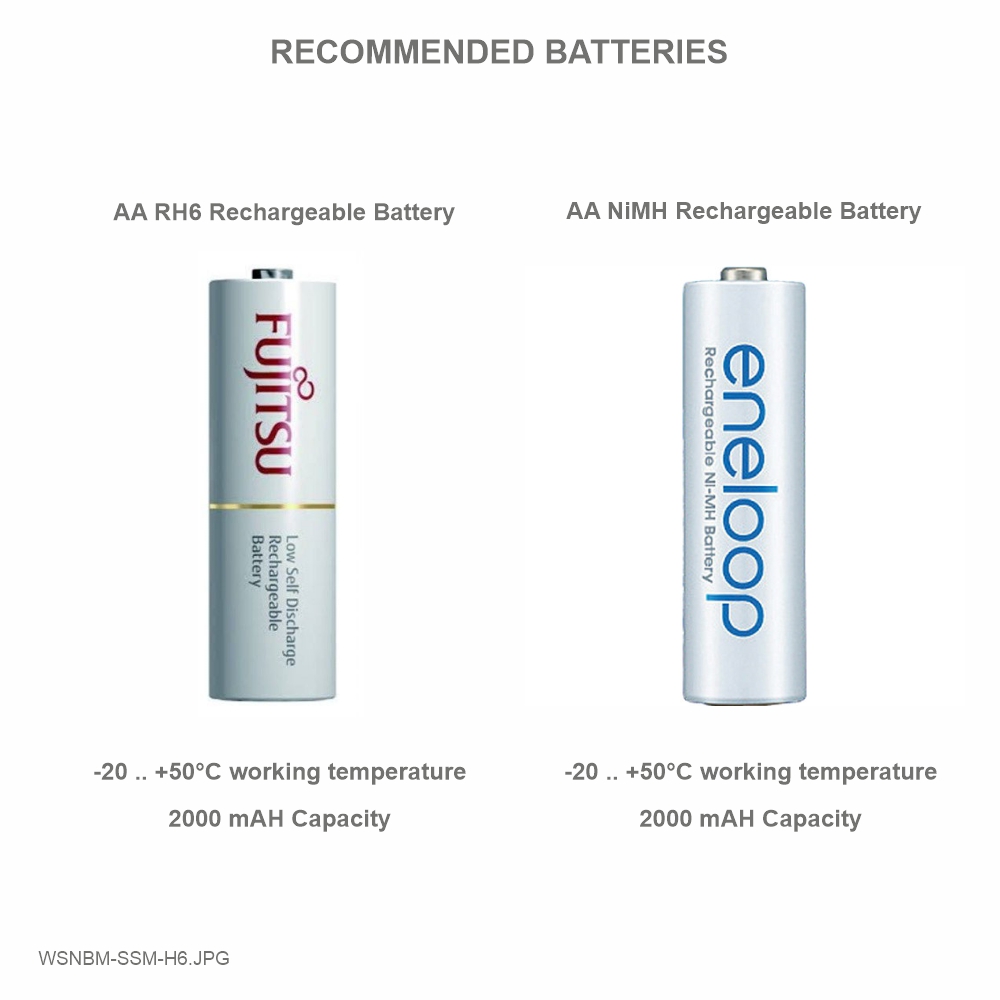
- Rechargeable battery:
- Battery size and Voltage: AA 1.2 VDC
- Number of batteries: 06
- Recommended batteries: Panasonic Eneloop BK-3MCCE or Fujitsu HR-3UTC
Note: The configuration cable must be plugged out the configuration port before inserting the batteries to the device.
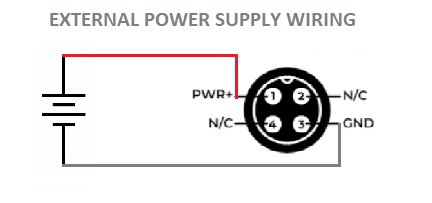
Wiring of main power supply to M12 female connector for external power supply
Note:
- Pin 2 and Pin 4 of M12 female connector is not used.
- If the AC adapter is used, isolated AC/DC power adapter is required for interference isolation
- Device housing must be connected to earth plate for safety.
- The configuration cable must be plugged out the configuration port before supplying the external power
Procedures to insert batteries
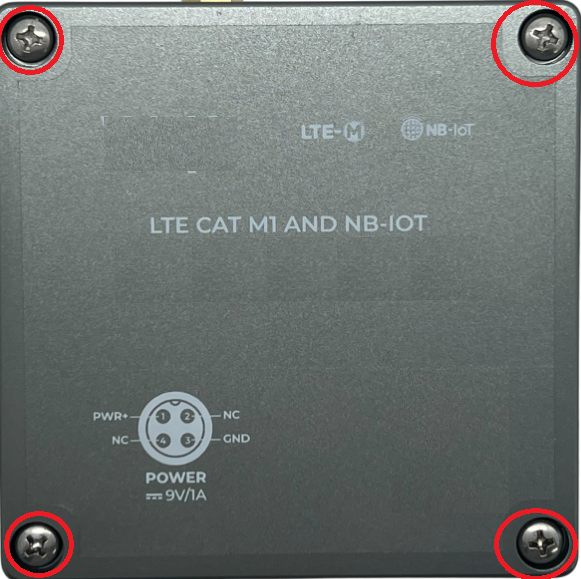
- Open the device upper housing by removing 4 screws
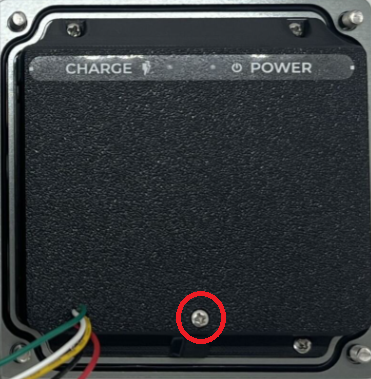
- Open the battery cover by removing a screw
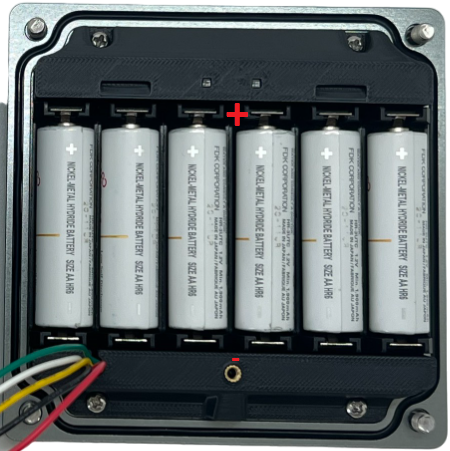
- Insert 6 rechargeable batteries to the battery holder with right polarity
- Close the battery cover and device upper housing
Note:
The configuration cable must be plugged out the configuration port before inserting the batteries.
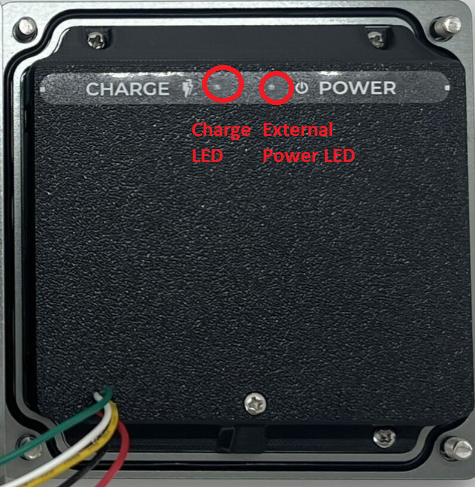
Power LEDs
External Power LED : ON when external power is applied; OFF when no external power is applied
Charge LED: ON when external power supply is greater than 7.2 V to charge the batteries. If the the batteries is fully charged, the LED is OFF.
1.6 What's in the Package?
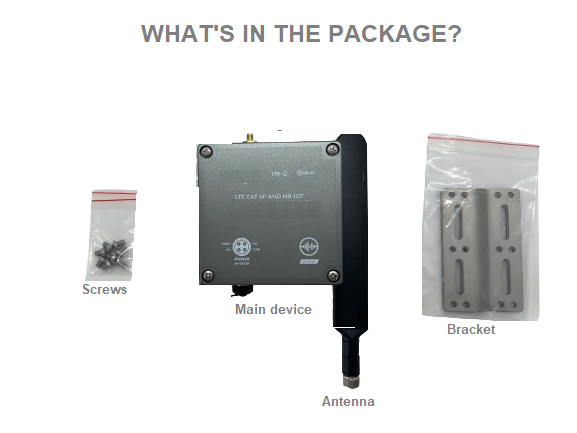
1.7 Guide for Quick Test
The device can be connected quickly to MQTT broker by the following steps.
- MQTT broker's settings: host, post, user, password CAT file (if applicable), QoS
- Cellular settings: CAT M1/NB IoT, frequency bands
Step 2: Install the antenna to the main device by screwing it clockwise
- Open the device upper housing by removing 4 screws
- Insert the SIM to the device: Push the SIM holder cover slightly, open the SIM holder cover, insert the SIM to the holder, then close the SIM holder cover and then push the SIM holder cover back to origin position. Details as in below video
Step 5: Insert the 6 rechargeable batteries into the device. Please refer section 1.5 Power Supply, sub-section Procedures to insert batteries for details
Step 6: Supply external power 9V minimum 1A to the device
- Plug M12 connector of provided power supply cable to M12 connector on the device
- Plug/Supply external power supply from 9V power adapter or 9V solar panel to power connector of provided power supply cable
Step 7: After supplying the power, the device will publish topics to the MQTT broker. The application subscribes the topics and decode the payload to get measured values. Details of topic name and payload is at Section Section 1.9 Payload Document and Configuration Tables.
1.8 Installation and Wiring
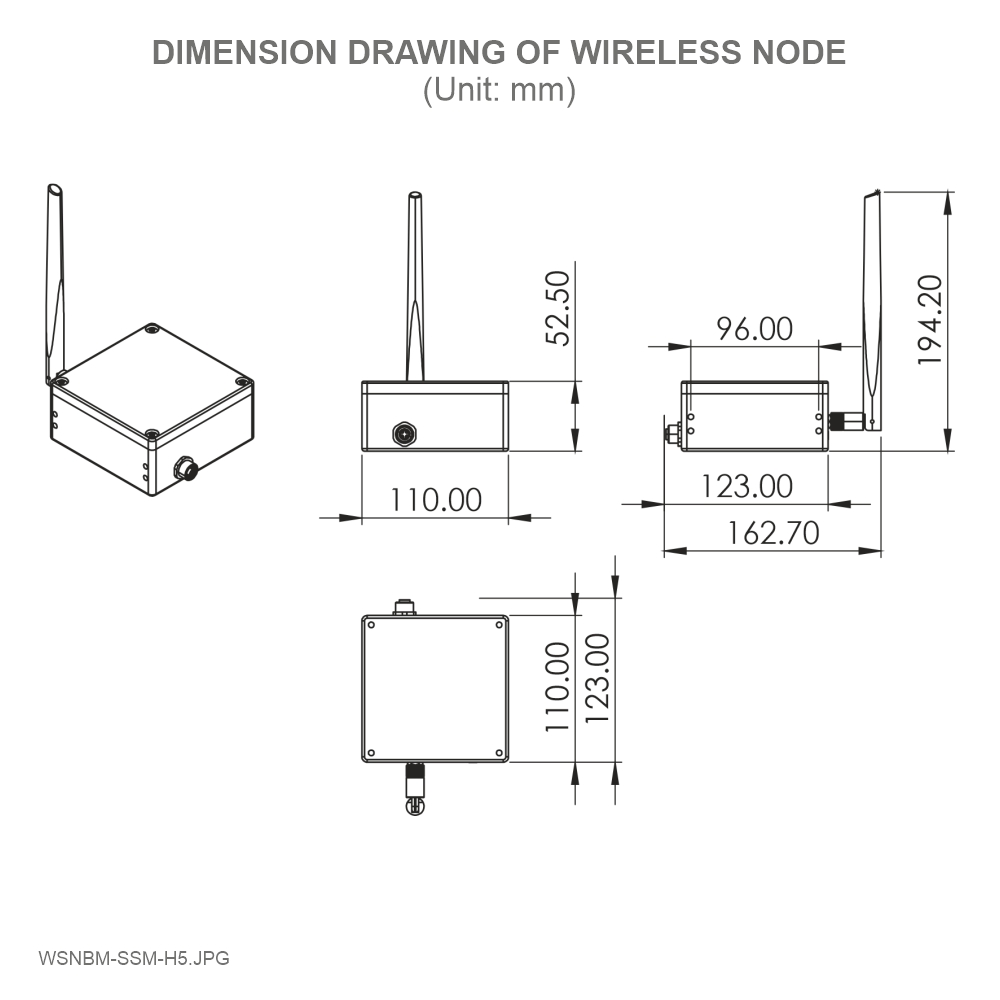
1.8.1 Installation drawings
Dimension drawings for installation as below
1.8.2 Check list for installation
Please follow the checklist below for a successful installation:
1. Have you studied the dimensions of the device as above drawings?
2. Have you tested and make sure the device have been connected successfully as Section "1.7 Guide for Quick Test" above?
3. Have the device been configured properly as per Section 3.2 below?
4. Have the device been calibrated or validated as per Section 3.3 below?
5. Then you can start to install the device at site. Please check the following Installation Notes for Sensor Part (if available) before installation.
1.8.3 Selection for installation location
- Make sure the site is good enough for CAT-M1/NB IoT signals.
- Choose a location far from light, heat, and vibration.
- Select solid barrier to install the sensor.
-
The AG sensor is built-in with the main device.
-
Install device at zero position X tilt of zero and Y tilt of zero
- DO NOT install the sensor or its antenna inside a completed metallic box or housing because the cellular signal can not pass through the metallic wall. The housing is made from Non-metallic materials like plastic, glass, wood, leather, concrete, and cement…is acceptable.
- Attach the sensor housing to a solid barrier using screws.
- Avoid attaching the sensor to soft or vibrating surfaces to prevent false alarms.
- Make sure the site near the power supply if the device use power adapter.
- Make sure the installation location could get enough sun light if the solar panel user solar panel
1.8.4 Sample installation
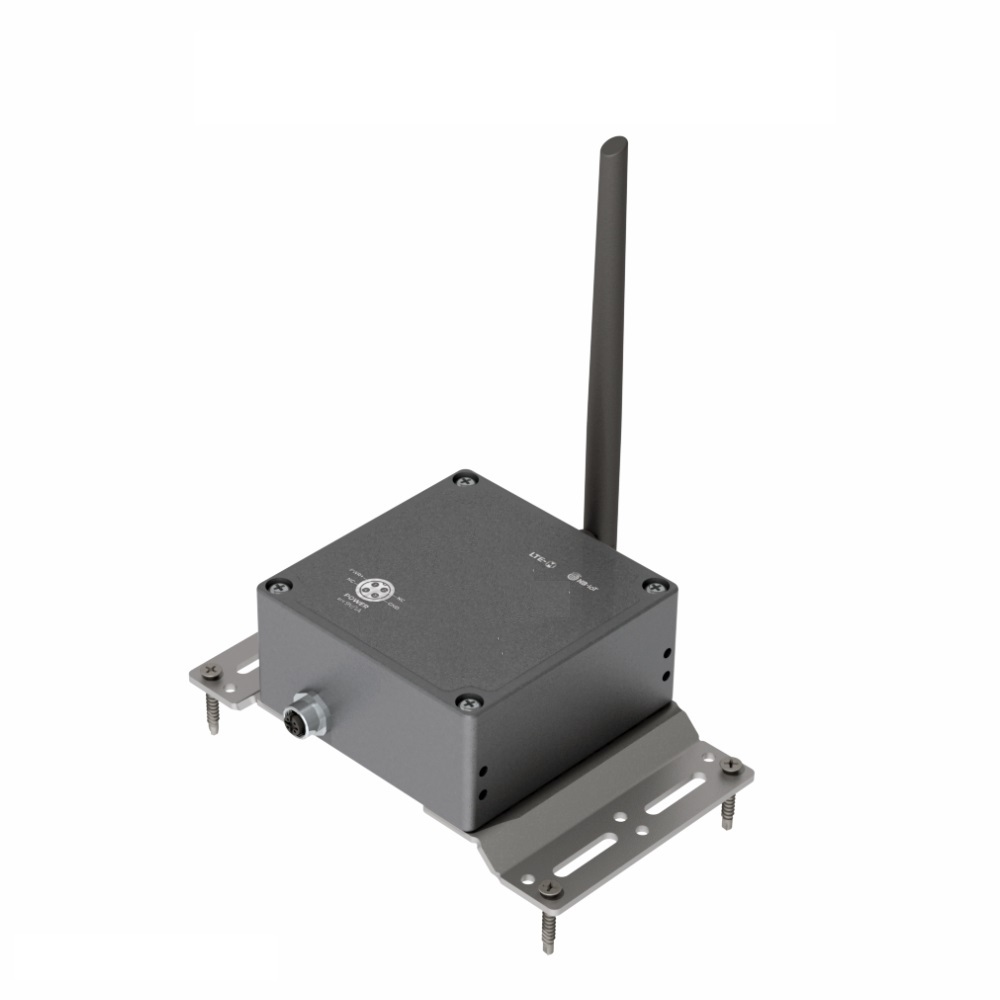
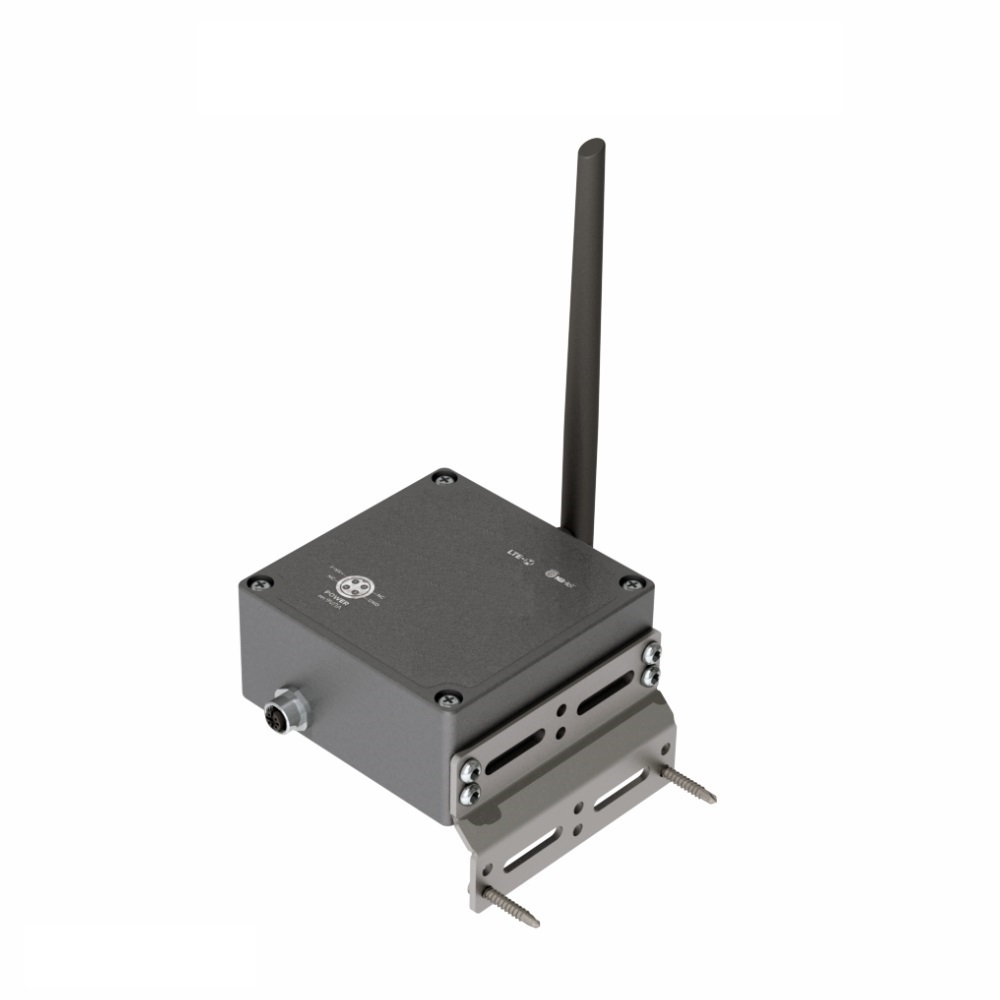
1.9 Payload Document and Configuration Tables
Please click below link for:
-
Payload decoding of Uplink messages;
-
Payload encoding of Downlink messages;
-
Configuration Tables of device.
Click Payload document and configuration table to download Payload Document and Configuration Tables
1.10 How to connect device to MQTT Broker
Please find below the examples of adding Daviteq's MQTT device to the following MQTT broker:
-
Mosquitto MQTT broker
No Comments