
III. ADVANCE GUIDE
3.1 Operation Principle
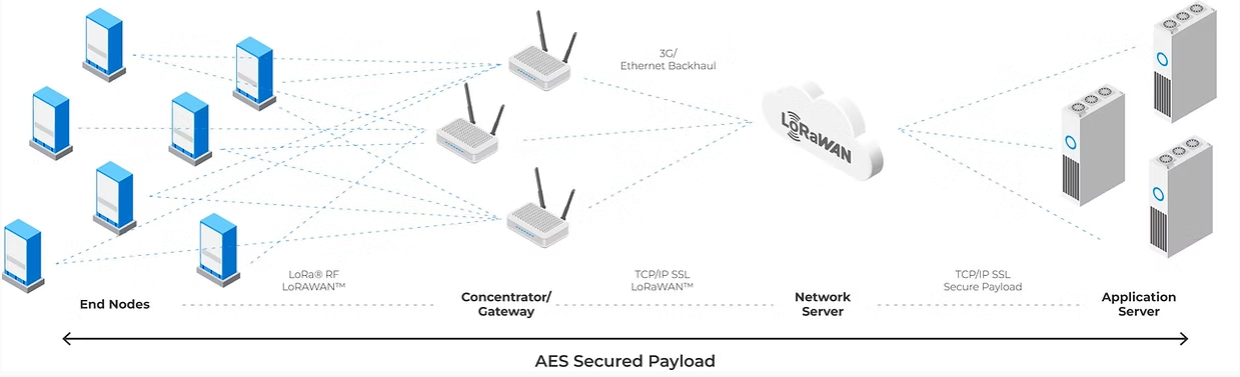
A LoRaWAN gateway functions as a transparent bridge between LoRa end devices and the LoRaWAN network server. It receives uplink packets from end devices via LoRa radio signals and forwards them to the network server over an IP-based backhaul (e.g., Ethernet, Wi-Fi, or cellular).
The gateway also receives downlink messages from the network server and transmits them to the appropriate end devices. It does not process or modify the payload data, ensuring secure and efficient communication between devices and the server.
3.2 Connect directly from window PC to gateway through ethernet cable for configuration
3.3.1 PREPARATION
Hardware
- A Daviteq gateway
- A window laptop
- A USB-to-LAN adapter ( if the laptop does not have ethernet port)
- A straight ethernet cable
Software
Download and Install Tftdp64 software (attached file)
3.3.2 DETAILED INSTRUCTIONS
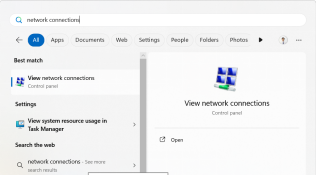
Step 1: Type “Network Connections” in the search bar, then select “View network connections.”
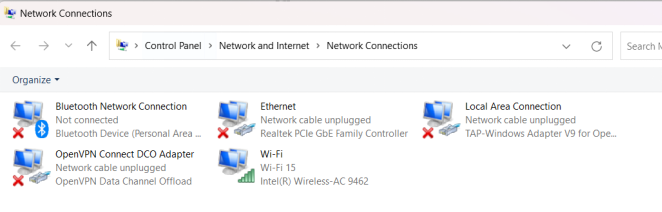
Step 2: Plug the USB-to-LAN adapter into the laptop. Wait for a few seconds, and the Ethernet connection of the adapter will appear.
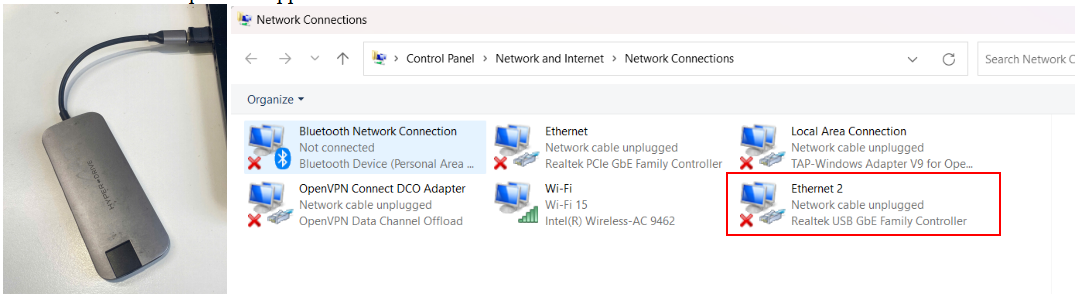
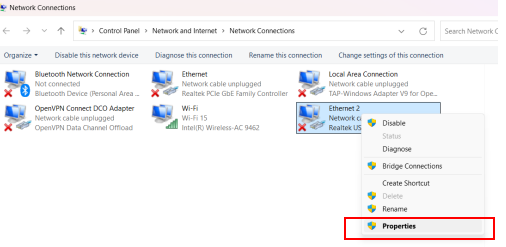
Step 3: Right click the Ethernet connection of the adapter, then select Properties
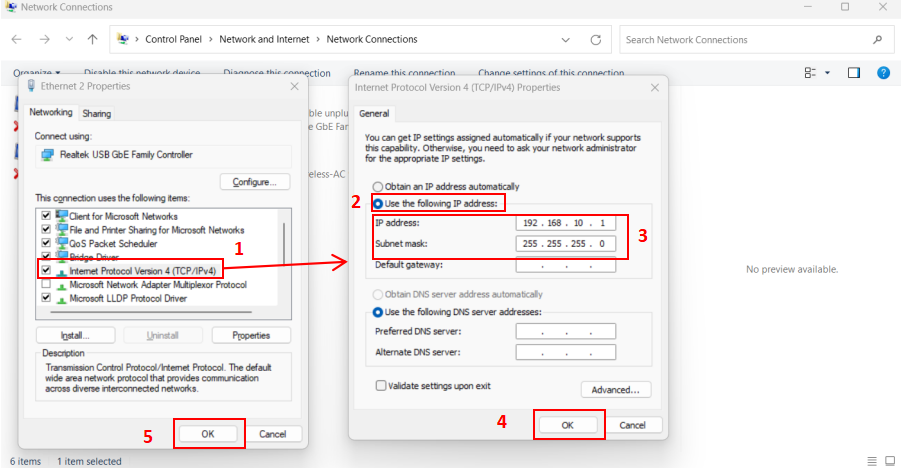
Step 4: In the Networking tab, select Internet Protocol Version 4(TCP/IPv4).
Then, select Use the following IP address and input the information as shown in the picture below
IP address : 192.168.10.1
Subnet mask: 255.255.255.0
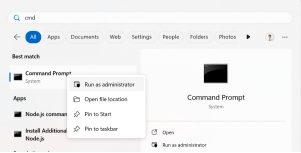
Step 5: Run Command Prompt as administrator
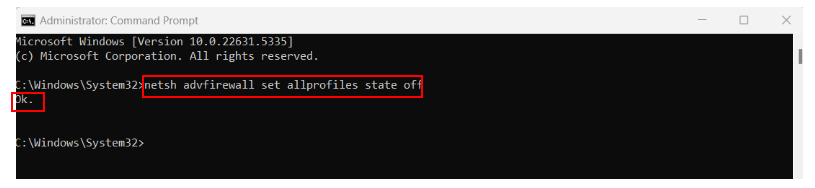
Copy and paste command below to the Command Prompt to temporarily turn off the Firewall
netsh advfirewall set allprofiles state off
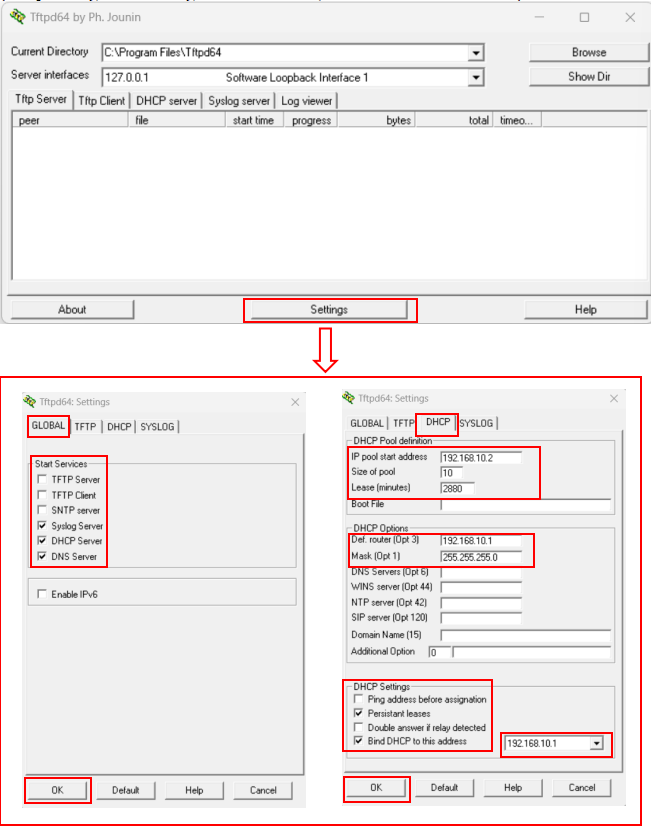
Step 6: Open the Tftpd64 Software, click the Settings button, then configure it as shown in the pictures below. After that, click OK to save the new settings.
(Only change the settings in the red box, leave the rest as default)
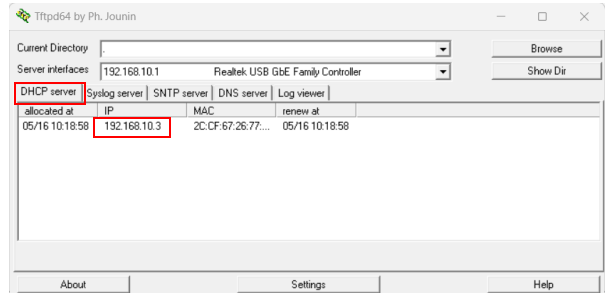
Step 7: Power on the gateway, then connect the Ethernet cable from the gateway to the laptop through the adapter. Wait for a few seconds, the IP address of the gateway will be displayed in DHCP server tab of the Tftpd64 software
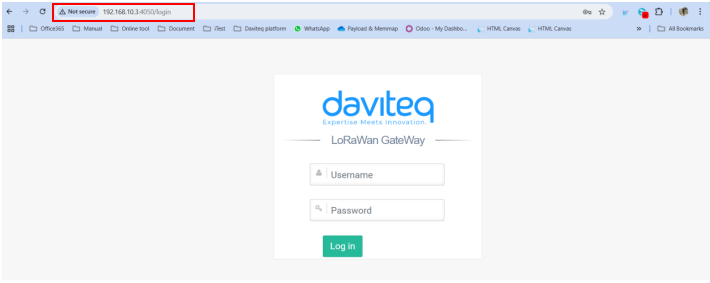
Step 8: Access the gateway’s GUI via the IP address and port 4050 (e.g., 192.168.10.3:4050).
If the web browser displays as shown in the image below, it means you have successfully accessed the gateway. Next, refer to the user guide to configure the Wi-Fi and the LoRaWAN Package Forwarder for the gateway.
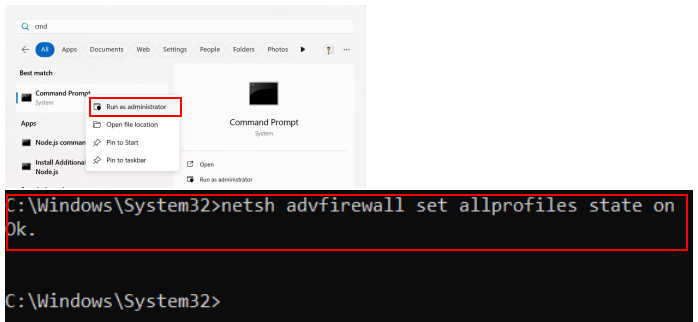
Step 9:After finishing the configuration, please turn the firewall back on for your computer.
Run Command Prompt as administrator, then copy and paste the command below to the Command Prompt
netsh advfirewall set allprofiles state on
No Comments